Smart Home for Beginners: Where to Start
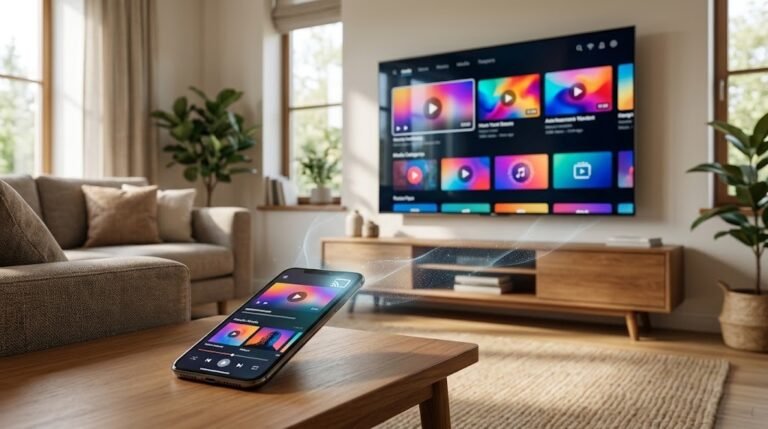
A smart home uses connected devices to make everyday tasks easier. Lights can turn off automatically, a thermostat can follow your schedule, and a doorbell can notify you when someone arrives.
You do not need to automate your entire house at once. The best approach is to solve one practical problem, learn how the technology works, and expand gradually. This beginner-friendly guide explains the main types of smart home devices, how they communicate, and how to build a useful system without overspending.
What Does “Smart Home” Actually Mean?
A smart home contains devices that can be monitored, controlled, or automated using an app, voice assistant, schedule, sensor, or another connected device.
For example, you might:
- Turn off a lamp from your phone.
- Ask a smart speaker to play music.
- Schedule the thermostat to lower the temperature at night.
- Receive an alert when a camera detects movement.
- Automatically turn on an entrance light after sunset.
- Lock the front door from an app.
- Create a bedtime routine that adjusts several devices together.
A device does not have to use artificial intelligence to be considered smart. In most cases, “smart” simply means the device can connect to a network, respond to commands, or participate in an automation.
How Smart Home Devices Communicate
Smart devices need a way to receive instructions and, in some cases, communicate with one another.
Wi-Fi
Many smart cameras, speakers, displays, bulbs, and plugs connect directly to your home Wi-Fi network. This makes setup straightforward because you may not need additional equipment.
However, a large number of Wi-Fi devices can make network management more complicated. Wi-Fi cameras can also use significant bandwidth, especially when recording or streaming high-quality video.
Bluetooth
Bluetooth is commonly used during setup or for short-range control. It works well when your phone is nearby, but it is usually less suitable for controlling devices throughout a large home.
Some Bluetooth devices can also communicate through a compatible hub or smart speaker, allowing remote access.
Hubs and bridges
Some products communicate through a dedicated hub or bridge connected to your home network. The hub acts as a coordinator between your smart devices and their apps.
A hub may provide:
- More reliable communication
- Support for battery-powered sensors
- Centralized control
- Local automation
- Less dependence on direct Wi-Fi connections
The disadvantage is that it adds another device to purchase, configure, and power.
Matter and Thread
Matter is a smart home compatibility standard designed to make supported products work across multiple major ecosystems. A Matter logo can make compatibility easier to understand, but you should still confirm that your preferred platform supports the device’s features.
Thread is a low-power networking technology used by some smart home devices. Compatible Thread products form a network through which devices can help pass messages. To connect that network to your wider home network, you normally need a compatible device known as a Thread border router. This function may be built into certain hubs, smart speakers, or smart displays.
You do not need to understand these technologies in detail before starting. Focus on whether a device works with your chosen ecosystem and whether it requires a hub, bridge, or border router.
Start With a Problem, Not a Product
Before buying anything, identify a repeated inconvenience you want to solve.
Good first goals include:
- Turning off a bedroom lamp without getting out of bed
- Automatically lighting a dark entrance
- Controlling a living-room fan on a schedule
- Reducing unnecessary heating or cooling
- Checking who is at the door
- Making it appear that someone is home while traveling
This approach helps you avoid buying impressive devices that do not improve your daily routine.
Smart Bulbs
Smart bulbs let you control lighting through an app, schedule, voice command, or automation.
Depending on the bulb, you may be able to:
- Turn it on and off remotely
- Adjust brightness
- Change white color temperature
- Select different colors
- Create schedules
- Include it in scenes or routines
Where smart bulbs work well
Smart bulbs are useful for lamps and fixtures where you want individual lighting control. For example, you could gradually brighten a bedroom lamp in the morning or dim living-room lights for movie night.
Important limitation
A smart bulb needs continuous electrical power to remain connected. If someone turns off the physical wall switch, the bulb may become unavailable in the app.
For a fixture controlled frequently by a wall switch, a compatible smart switch may be more practical. Electrical switches should be installed according to local safety requirements, preferably by a qualified professional when wiring work is involved.
Smart Plugs
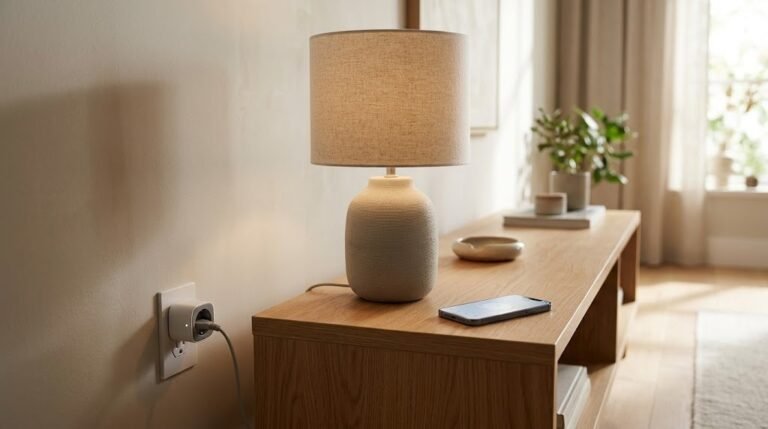
A smart plug fits between a wall outlet and an appliance. It controls whether power reaches that appliance.
Smart plugs work best with devices that resume operation when power is restored, such as:
- Lamps with physical switches
- Some fans
- Holiday lights
- Coffee makers with simple mechanical controls
- Decorative lighting
- Certain air purifiers
What not to connect
Do not assume every appliance is suitable for a smart plug. Check the plug’s electrical rating and the appliance manufacturer’s guidance.
Be especially cautious with:
- Space heaters
- High-power cooking appliances
- Air conditioners
- Motors and pumps
- Medical equipment
- Appliances that require supervision
- Devices that should not restart automatically
A smart plug should never be used to exceed an outlet’s capacity or bypass normal safety controls.
Smart Speakers
A smart speaker combines a speaker, microphones, internet services, and a voice assistant.
It can often:
- Play music or podcasts
- Set timers and reminders
- Answer simple questions
- Control compatible smart devices
- Run routines
- Make announcements
- Provide weather or calendar information
A smart speaker can become a convenient control point, but voice control should complement—not replace—apps, switches, and automatic routines.
Placement tips
Place the speaker where voice commands are likely to be used, such as a living room or kitchen. Keep it away from sinks, cooking splashes, and other unsuitable conditions unless the product is designed for them.
Review microphone and voice-history settings during setup. Most smart speakers include a physical microphone control, but its behavior varies by product.
Smart Thermostats
A smart thermostat controls a compatible heating or cooling system. It may support schedules, remote adjustments, energy reports, occupancy detection, or integrations with other devices.
Check compatibility first
Heating and cooling systems vary. Before purchasing, check:
- The type of system in your home
- The number and function of existing thermostat wires
- Power requirements
- Whether a common wire is required
- Support for multistage systems, heat pumps, or underfloor heating
- Whether professional installation is recommended
- Permission requirements if you rent
A smart thermostat is not automatically compatible just because it fits on the wall.
A simple thermostat routine
You might create a schedule that:
- Sets a comfortable temperature before you wake.
- Reduces heating or cooling when the home is normally empty.
- Restores comfort before you return.
- Uses a quieter or more economical setting overnight.
Avoid extreme temperature changes or settings that could affect pets, plants, pipes, humidity, or vulnerable household members.
Smart Cameras
Smart cameras let you view video, receive motion alerts, and sometimes communicate through a speaker and microphone.
Common locations include:
- Entrances
- Driveways
- Garages
- Living areas
- Nurseries
- Pet areas
Features to compare
Consider:
- Indoor or outdoor suitability
- Power source
- Field of view
- Low-light performance
- Motion zones
- Person, package, vehicle, or animal detection
- Local or cloud recording
- Subscription requirements
- Storage duration
- Two-way audio
- Account security
- Compatibility with your ecosystem
Use cameras responsibly
Avoid placing cameras where people reasonably expect privacy, such as bathrooms or guest sleeping areas. Tell household members and visitors when appropriate, and follow local laws regarding video and audio recording.
Use a unique password and enable multifactor authentication if the service supports it.
Smart Doorbells
A smart doorbell combines a doorbell button with a camera, microphone, speaker, motion detection, and app notifications.
It may allow you to:
- See who is at the entrance
- Speak to visitors remotely
- Receive package or movement alerts
- Review recorded events
- Connect to an indoor chime or smart speaker
Wired vs. battery-powered models
A wired smart doorbell may use existing doorbell wiring, but compatibility depends on the transformer, chime, and product requirements.
A battery-powered model can be easier to install, but it needs recharging or battery replacement. Very frequent motion alerts may reduce battery life.
Before buying, confirm the viewing angle, weather resistance, storage method, subscription costs, and mounting options.
Smart Locks
A smart lock provides electronic access control through methods such as an app, keypad, fingerprint reader, digital key, or automation.
Potential benefits include:
- Keyless entry
- Temporary access codes
- Access history
- Remote status checks
- Automatic locking
- Alerts when the door is unlocked
- Easier access for trusted visitors or service providers
What to check before installation
Confirm:
- Door and lock compatibility
- Whether the existing deadbolt moves smoothly
- Battery requirements
- Emergency access options
- Whether a physical key remains available
- What happens if the internet is unavailable
- What happens if the battery runs out
- Whether remote access requires a hub
- Whether the device meets relevant security or building requirements
A smart lock should not be used to compensate for a misaligned door or a deadbolt that requires force. Fix the mechanical problem first.
Smart Displays
A smart display provides many smart-speaker functions with the addition of a screen.
Depending on the model and services, it may show:
- Timers and reminders
- Calendars
- Recipes
- Weather information
- Camera feeds
- Doorbell video
- Music controls
- Video calls
- Smart home controls
A smart display can be useful in a kitchen, living room, or home office. Before placing one in a bedroom, consider whether you want a screen, microphone, or camera in that space. Review its camera controls, microphone controls, lock-screen settings, and personal-information options.
Choosing a Smart Home Ecosystem
An ecosystem is the main platform you use to organize and control your smart devices.
Choosing one primary ecosystem makes setup easier because your devices can appear in one app and respond to the same assistant or automation system.
Ask these questions
Before choosing, consider:
- Which phones and computers does your household already use?
- Do you want voice control?
- Which smart speakers or displays do you already own?
- Are your preferred devices compatible with the platform?
- Can multiple household members control the home?
- Does the platform support Matter?
- Can important automations run locally, or do they require internet access?
- How are camera recordings stored?
- Are subscriptions required?
- Can you export, transfer, or delete your data?
Avoid mixing too many platforms initially
A device may have its own app while also appearing in your main smart home platform. That is normal. However, buying devices that work only in unrelated ecosystems can lead to several apps, duplicated routines, and confusing controls.
For your first few purchases, choose products that clearly support the same primary ecosystem.
Wi-Fi Requirements for a Smart Home
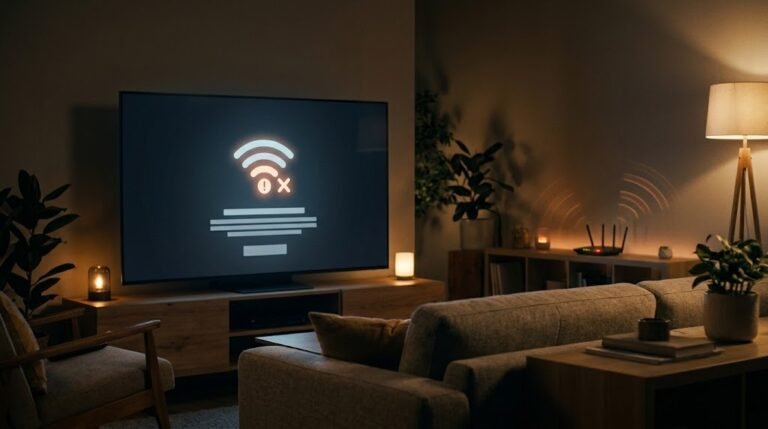
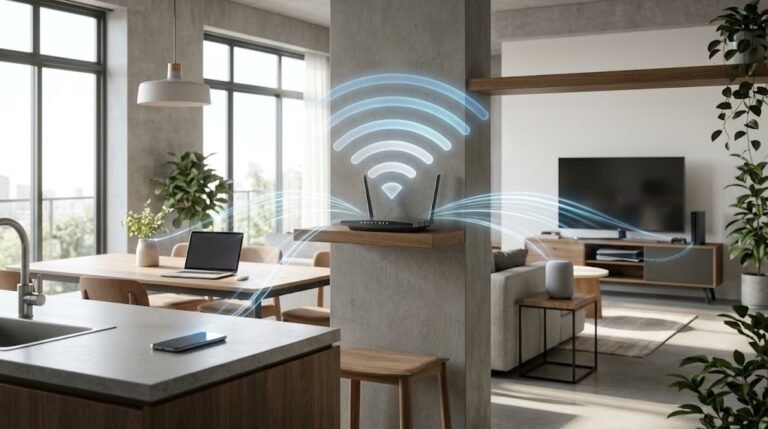
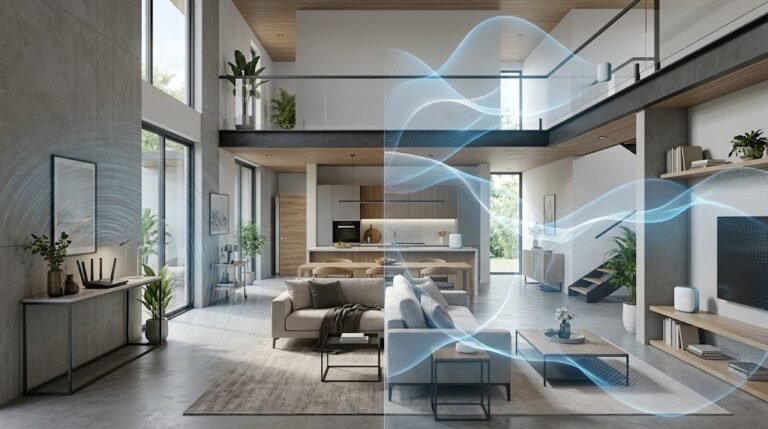
A smart home depends on a stable home network. You do not necessarily need the fastest internet plan, but devices must have reliable coverage in the places where they are installed.
Check coverage before buying
Use your phone to test Wi-Fi in locations such as:
- The front door
- The garage
- Outdoor camera positions
- Upstairs rooms
- The garden or driveway
- Corners where sensors or plugs may be installed
If your phone frequently disconnects in a location, a Wi-Fi camera or doorbell may also struggle there.
2.4 GHz compatibility
Many smart bulbs, plugs, and household sensors use 2.4 GHz Wi-Fi because it generally provides better range than higher-frequency bands. Confirm that your router has 2.4 GHz enabled.
If a device will not complete setup, check whether the manufacturer requires your phone to be temporarily connected to the same 2.4 GHz network.
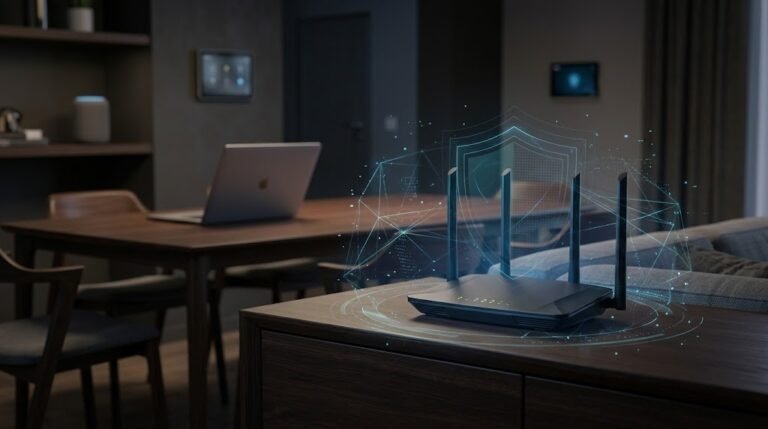
Network security basics
For a safer and more reliable smart home:
- Change the router’s default administrator password.
- Use a strong, unique Wi-Fi password.
- Keep router firmware updated.
- Use current Wi-Fi security settings supported by your equipment.
- Disable remote router administration unless you need it and understand how it is secured.
- Remove devices you no longer use.
- Replace products that no longer receive security updates.
- Consider a separate guest or smart-device network if your router supports it and the separation does not prevent required device communication.
Privacy Considerations
Smart devices can collect information about activity inside and around your home. Cameras, microphones, locks, occupancy sensors, and location-based routines deserve particular attention.
Review what the device collects
Before buying, find out:
- What information is collected
- Why it is collected
- Where it is stored
- How long it is retained
- Whether recordings are stored locally or online
- Whether data is used for advertising or product improvement
- Whether you can delete your history and account
- Whether a subscription changes the available privacy controls
Secure every account
Use:
- A unique password for each important account
- Multifactor authentication where available
- Separate user access instead of sharing one password
- Automatic security updates when practical
- Login and access notifications if offered
Avoid reusing the same password for your smart home account, email account, and Wi-Fi network.
Limit access
Give household members only the access they need. Remove former residents, guests, contractors, and unused shared accounts.
For locks and alarm-related devices, use temporary or individual access codes rather than sharing the primary administrator account.
Consider failure scenarios
Ask what happens when:
- The internet goes down
- The manufacturer’s service is unavailable
- Your phone battery is empty
- The device loses power
- A subscription expires
- The manufacturer stops supporting the product
Important functions such as unlocking a door, turning on essential lights, or adjusting heating should have a practical manual alternative.
Creating Simple Home Automation Routines
An automation follows a basic structure:
When something happens, perform an action—sometimes only if certain conditions are met.
For example:
- Trigger: The sun sets.
- Condition: Someone is home.
- Action: Turn on the entrance light.
Start with predictable routines
Begin with automations that are simple and easy to reverse.
Morning routine
At a chosen time:
- Turn on the bedroom lamp at low brightness.
- Adjust the thermostat to a comfortable setting.
- Play a news or weather briefing.
Leaving-home routine
When you activate an “Away” scene:
- Turn off selected lights.
- Switch off safe-to-control plugs.
- Adjust the thermostat.
- Check the lock status.
- Enable appropriate camera notifications.
Do not automatically unlock or open doors based only on phone location. Location detection can be delayed or inaccurate.
Evening routine
At sunset:
- Turn on the entrance light.
- Turn on a living-room lamp.
- Adjust the brightness later in the evening.
Bedtime routine
When you say a chosen voice command or tap a scene:
- Turn off living-room lights.
- Turn off selected smart plugs.
- Dim the bedroom light.
- Adjust the thermostat.
- Confirm the door is locked.
Test every routine
After creating an automation:
- Run it manually.
- Confirm that every device responds.
- Test its trigger.
- Check how it behaves if a device is offline.
- Make sure it cannot create a safety problem.
- Ask other household members whether it disrupts their routine.
- Keep a manual method of control available.
Practical Smart Home Examples by Room
Bedroom Ideas
A simple bedroom setup might include:
- A smart bulb or plug-controlled bedside lamp
- A smart speaker for alarms and audio
- A temperature sensor
- Smart curtains or blinds, if compatible and useful
Beginner bedroom routine
At bedtime, a single command could:
- Dim the bedside lamp
- Turn off a reading lamp after 20 minutes
- Lower the speaker volume
- Adjust the thermostat
Avoid automations that turn off lights unexpectedly while someone is reading, dressing, or moving around.
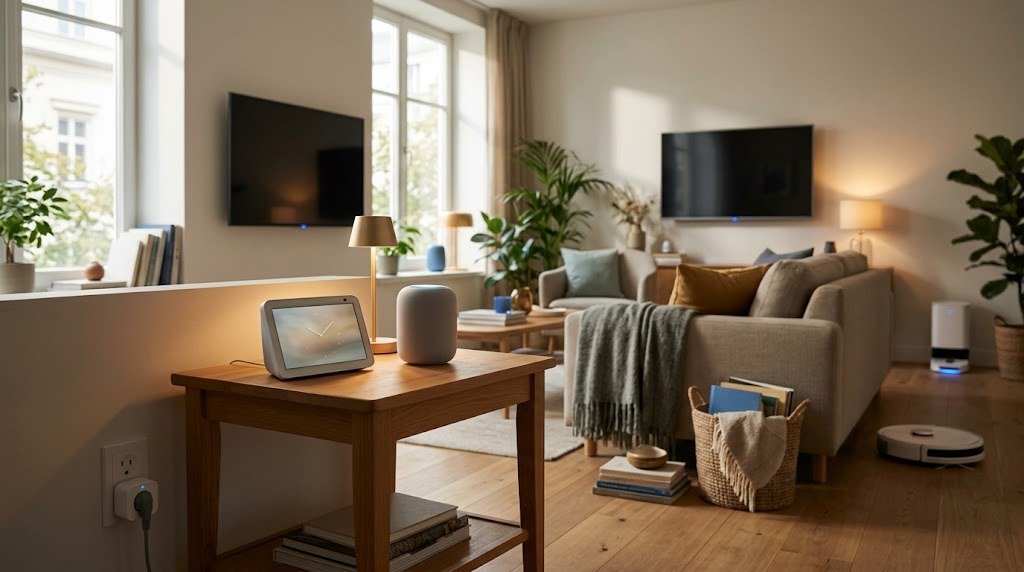
Living Room Ideas
The living room is a useful place to start because it often contains several controllable devices.
Possible additions include:
- Smart bulbs or lamps
- Smart plugs for suitable devices
- A smart speaker or display
- Smart blinds
- A television or media device with smart home integration
Movie-night routine
A “Movie Night” scene might:
- Dim the main lights.
- Turn on a lamp behind the television.
- Close compatible blinds.
- Set the smart speaker to a lower volume.
- Turn on compatible media equipment.
Do not place televisions, game consoles, or other electronics on smart plugs unless their manufacturers confirm that power can be safely controlled that way.
Kitchen Ideas
Useful kitchen devices include:
- A smart speaker or display for timers
- Smart bulbs
- Water-leak sensors under the sink
- Temperature sensors for suitable storage areas
- Smart plugs for approved, low-risk devices
Kitchen routine example
A morning kitchen routine could:
- Turn on under-cabinet lighting
- Start a news or music playlist
- Read calendar reminders
- Turn on a simple coffee maker only if its design and manufacturer instructions allow safe plug control
Avoid automating ovens, stovetops, kettles, or other high-heat appliances unless they are specifically designed for safe remote operation.
Entrance Ideas
The entrance is a natural location for security and convenience devices.
You might use:
- A smart doorbell
- A smart lock
- An outdoor-rated smart light
- A contact sensor
- A smart camera
- A smart display that can show the doorbell feed
Arrival routine example
When the door opens after sunset:
- Turn on the entrance light.
- Turn on a nearby hallway light.
- Keep both lights on for a defined period.
- Turn them off if no further movement is detected.
For safety, avoid routines that automatically unlock a door whenever a phone enters a large geographic area.
Mistakes Smart Home Beginners Should Avoid
Buying too many devices at once
A large first purchase makes troubleshooting difficult. Start with one room or one routine.
Ignoring compatibility
“Smart” does not mean a product works with every platform. Check ecosystem, hub, app, and wireless requirements before buying.
Choosing devices only because they are inexpensive
A very cheap product may have a poor app, limited updates, unclear privacy practices, or weak customer support. Consider long-term usefulness, not only the initial price.
Forgetting subscription costs
Some cameras, doorbells, and security features require ongoing payments for recording, advanced detection, or extended history. Check which functions remain available without a subscription.
Depending entirely on voice commands
Voice control is convenient but not always appropriate. Maintain simple physical controls for lights and other frequently used devices.
Removing manual alternatives
A smart home should remain usable when the internet, an app, or a service is unavailable. Do not make essential functions dependent on one phone or online account.
Automating unsafe appliances
Remote power control is not suitable for every heater, cooking appliance, motor, or high-power device. Follow electrical ratings and manufacturer instructions.
Creating overly complicated routines
Automations with too many triggers and conditions can behave unpredictably. Begin with one trigger and one or two actions.
Ignoring other household members
An automation that works for one person may frustrate everyone else. Use clear names, predictable schedules, and accessible manual controls.
Skipping security updates
Keep device apps, firmware, phones, hubs, and routers updated. Remove unsupported devices from the network.
How to Build a Smart Home Gradually Without Overspending
A useful smart home is built around everyday needs rather than the number of devices.
Phase 1: Choose one small problem
Select a task you repeat every day, such as switching off a distant lamp.
Buy one suitable smart bulb or smart plug and use it for a week.
Phase 2: Select your main ecosystem
Choose a platform that works well with your household’s existing phones and devices. Avoid purchasing several assistants simply to experiment.
Phase 3: Add one control point
If voice control is useful, add a smart speaker or display in the most frequently used room. Otherwise, continue using the app and physical controls.
Phase 4: Create one routine
Build a simple evening or bedtime routine. Test it before adding more devices.
Phase 5: Expand by room
Add devices only where they solve a clear problem. Complete one useful room setup before starting another.
Phase 6: Address coverage and security
Before adding outdoor cameras or distant devices, improve Wi-Fi coverage and account security.
Phase 7: Consider larger upgrades
Once you understand your preferences, consider more expensive devices such as thermostats, locks, cameras, doorbells, blinds, or a mesh Wi-Fi system.
Ways to control costs
- Buy one or two devices at a time.
- Check whether existing appliances can be controlled safely with a smart plug.
- Avoid duplicating hubs and smart speakers.
- Choose products that support your primary ecosystem.
- Calculate subscription costs before buying cameras.
- Wait before replacing functioning devices with smart versions.
- Prioritize products with ongoing security support.
- Buy devices for specific routines rather than hypothetical future uses.
Beginner’s Smart Home Checklist
Before buying
- Incomplete to-do itemIdentify one problem you want to solve.
- Incomplete to-do itemChoose your primary smart home ecosystem.
- Incomplete to-do itemConfirm that the device supports that ecosystem.
- Incomplete to-do itemCheck whether it requires a hub or bridge.
- Incomplete to-do itemCheck whether it uses Wi-Fi, Bluetooth, Thread, or another connection.
- Incomplete to-do itemTest Wi-Fi coverage at the installation location.
- Incomplete to-do itemReview electrical and installation requirements.
- Incomplete to-do itemCheck subscription costs.
- Incomplete to-do itemRead the privacy and data-storage information.
- Incomplete to-do itemConfirm that manual control remains available.
During setup
- Incomplete to-do itemChange default passwords.
- Incomplete to-do itemEnable multifactor authentication when available.
- Incomplete to-do itemInstall firmware and app updates.
- Incomplete to-do itemGive each device a clear name, such as “Bedroom Bedside Lamp.”
- Incomplete to-do itemAssign devices to the correct rooms.
- Incomplete to-do itemInvite household members through individual accounts when possible.
- Incomplete to-do itemTest the device using both the app and its manual control.
- Incomplete to-do itemStore recovery codes or emergency instructions securely.
Before creating automations
- Incomplete to-do itemStart with one trigger and a small number of actions.
- Incomplete to-do itemTest the routine manually.
- Incomplete to-do itemCheck what happens when the internet is unavailable.
- Incomplete to-do itemConfirm that the automation cannot create a safety risk.
- Incomplete to-do itemMake sure other household members understand it.
- Incomplete to-do itemKeep essential controls easy to reach.
- Incomplete to-do itemReview routines after changing schedules or devices.
Frequently Asked Questions
1. What should be my first smart home device?
A smart bulb or smart plug is often a practical first device because it is affordable, easy to understand, and useful for simple routines. Choose one that solves a specific problem and supports your preferred ecosystem.
2. Do smart home devices work when the internet is down?
It depends on the product. Some physical controls, schedules, and local automations may continue working, while remote access and cloud-based voice commands may stop. Check the product’s offline behavior before buying it for an important function.
3. Do I need a smart home hub?
Not always. Many devices connect directly to Wi-Fi. A hub may become useful when you add compatible sensors, want local automations, or need to coordinate many low-power devices.
4. Are smart home devices safe to use?
They can be used safely when installed correctly, kept updated, and protected by strong account security. Privacy and security practices vary between manufacturers, so review support policies, permissions, storage options, and account protections before purchasing.
5. Can different smart home brands work together?
Sometimes. Devices may work together through a shared ecosystem, Matter support, or another compatible platform. However, not every feature is always available outside the manufacturer’s app. Confirm compatibility and supported functions before purchasing.
Conclusion
Starting a smart home does not require a large budget or a house full of connected products. Begin with one everyday inconvenience, choose a compatible device, and create a simple routine that provides clear value.
As you expand, prioritize reliability, privacy, safety, and manual control. Build one room at a time, confirm compatibility before every purchase, and avoid paying for features you will not use. A successful smart home is not the one with the most technology—it is the one that makes daily life easier.