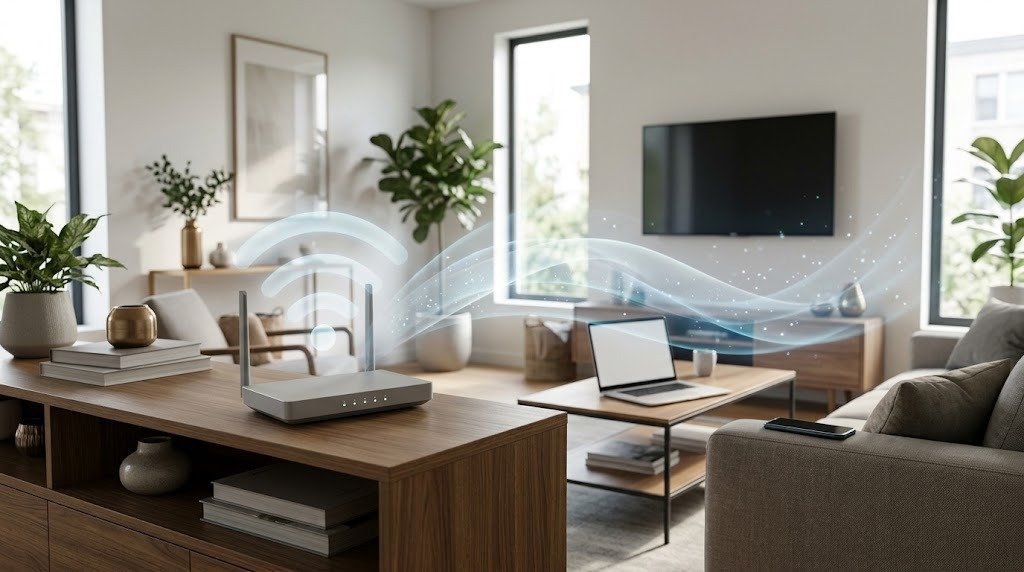
How to Improve Wi-Fi Speed and Coverage at Home
Slow Wi-Fi can turn video calls into a struggle, make streaming buffer, and leave parts of your home disconnected. The good news is that many Wi-Fi problems can be fixed without changing your internet provider or buying expensive equipment.
This guide explains why Wi-Fi slows down and provides practical steps to improve Wi-Fi speed, strengthen coverage, and eliminate common dead zones.
Why Does Wi-Fi Become Slow?
Wi-Fi performance can decline for several reasons:
- The router is too far from your device.
- Walls, floors, furniture, or appliances block the signal.
- Nearby networks compete for the same wireless channel.
- Too many devices are using the connection simultaneously.
- The router is outdated, overheating, or running old firmware.
- A device is downloading updates or transferring large files in the background.
- Your internet plan or provider is experiencing a slowdown.
- The router is positioned poorly.
- Your device is using the wrong Wi-Fi band.
Multiple devices sharing a home network can reduce performance and cause slower responses, especially when several people are streaming, gaming, downloading files, or joining video calls at the same time.
Before attempting a fix, determine whether the problem is your internet connection, your Wi-Fi network, or one particular device.
Internet Speed vs. Wi-Fi Signal Strength
Internet speed and Wi-Fi signal strength are related, but they are not the same.
Internet speed
Internet speed is the connection delivered to your home by your internet service provider. It determines how quickly data can travel between your home network and the internet.
A wired computer connected directly to the router is usually the best way to check the connection reaching your home.
Wi-Fi signal strength
Wi-Fi signal strength describes the quality of the wireless connection between your device and the router or access point.
You can have:
- Fast internet but weak Wi-Fi: The connection at the router is fast, but distance or obstacles prevent your device from using it effectively.
- Strong Wi-Fi but slow internet: Your device has an excellent connection to the router, but the internet plan, provider, or modem connection is slow.
- Both problems: A slow internet connection and weak wireless coverage can occur at the same time.
How to identify the problem
- Connect a computer to the router using an Ethernet cable.
- Run a speed test.
- Disconnect the cable and test over Wi-Fi while standing near the router.
- Repeat the Wi-Fi test in the room where the problem normally occurs.
- Compare the results.
If the wired result is also slow, investigate the modem, internet plan, provider, or network traffic. If wired performance is good but Wi-Fi becomes slow at a distance, focus on router placement, interference, band selection, or additional access points.
Put Your Router in the Best Location
Router placement is one of the easiest and most effective home Wi-Fi improvements.
Choose a central position
Place the router near the center of the area where you use Wi-Fi. A router at one end of the home must send its signal farther to reach the opposite side.
The FCC recommends a central router location to maximize home coverage.
Raise the router
Place the router on a shelf, table, or other elevated surface rather than on the floor. Avoid hiding it underneath a desk.
Microsoft also recommends moving an access point toward the middle of the home and placing it higher when possible.
Keep it in the open
Do not place the router:
- Inside a cabinet
- Behind a television
- Under heavy furniture
- In a basement corner, unless that is the main usage area
- Next to large metal objects
- Beside a microwave or cordless-phone base
- Near an aquarium or large container of water
If your internet cable enters the home in an inconvenient location, consider using a longer Ethernet cable so the router can sit in a better position.
Adjust external antennas
If your router has adjustable antennas, begin with the arrangement recommended by its manufacturer. When no guidance is available, try placing one antenna vertically and another at a different angle. Test coverage afterward rather than assuming a particular position will work best in every home.
How Walls and Furniture Affect Wi-Fi
Wi-Fi signals weaken as they pass through physical materials. The exact effect depends on the material, thickness, layout, and wireless band.
Common obstacles include:
- Concrete or brick walls
- Metal doors and cabinets
- Reinforced floors
- Mirrors with metallic backing
- Large appliances
- Bookshelves packed with books
- Aquariums
- Underfloor heating or metal ductwork
Higher-frequency bands generally have more difficulty passing through walls and other obstacles. Microsoft notes that 2.4 GHz usually offers longer range and better obstacle penetration than 5 GHz.
Practical ways to reduce blockage
- Walk from the router to the weak-signal room.
- Count the walls and floors between the two locations.
- Look for large metal objects or appliances along that path.
- Move the router into a more open and central position.
- Test again from the same location.
- If the signal must cross several substantial barriers, consider an additional access point or mesh system.
Do not place an extender directly inside a dead zone. It needs to receive a usable signal before it can repeat that connection.
2.4 GHz vs. 5 GHz vs. 6 GHz Wi-Fi
Many modern routers offer two or three Wi-Fi bands. Each is useful in different situations.
2.4 GHz: better reach
The 2.4 GHz band generally provides:
- Longer range
- Better performance through walls
- Broad compatibility with older and smart-home devices
Its disadvantages include:
- Lower potential throughput
- More congestion
- Greater exposure to interference from Bluetooth devices, microwaves, cordless phones, and nearby Wi-Fi networks
Use 2.4 GHz for distant rooms, basic browsing, smart-home devices, and equipment that cannot maintain a reliable 5 GHz connection.
5 GHz: faster at shorter distances
The 5 GHz band generally offers:
- Higher throughput
- More channel options
- Less congestion from common household devices
- Better performance for streaming, large downloads, video calls, and gaming near the router
Its range is typically shorter than 2.4 GHz, and walls weaken it more quickly. The FCC notes that 5 GHz connections can be faster and less crowded but cover a shorter range.
6 GHz: newer and less congested
The 6 GHz band is available on compatible Wi-Fi 6E and Wi-Fi 7 equipment in regions where regulators permit it. It provides additional spectrum and can offer excellent performance with compatible devices, especially near the router.
However:
- Both the router and client device must support 6 GHz.
- Its useful range may be shorter than that of lower bands.
- Obstacles can reduce performance quickly.
- Availability and permitted channels vary by country.
- Older devices cannot connect to it.
Wi-Fi 7 can operate across 2.4 GHz, 5 GHz, and 6 GHz and introduces features designed to improve throughput, latency, and reliability when supported by compatible equipment.
Which band should you use?
A simple starting point is:
- 2.4 GHz: Long distance, several walls, or smart-home devices
- 5 GHz: General high-speed use within good range of the router
- 6 GHz: Compatible devices close to a compatible router or access point
Many routers automatically move devices between bands using one network name. If this works reliably, leave it enabled. If a device repeatedly chooses an unsuitable band, separate network names can help you test and control its connection.
How to Reduce Wi-Fi Interference
Interference occurs when other wireless networks or electronic devices compete with or disturb your Wi-Fi signal.
Move away from common sources
Keep the router away from:
- Microwave ovens
- Cordless-phone bases
- Baby monitors
- Bluetooth hubs
- Wireless cameras
- Large speakers
- USB 3 devices or hubs that appear to cause nearby interference
- Other routers and access points
Microwaves, cordless phones, baby monitors, and Bluetooth devices can be particularly relevant to the 2.4 GHz band.
Reduce unnecessary network traffic
Check whether someone or something is:
- Downloading a large game or system update
- Backing up photos or videos
- Synchronizing cloud storage
- Streaming at a very high resolution
- Uploading security-camera footage
- Running peer-to-peer transfers
Pause nonessential transfers and repeat your speed test.
Also review the router’s connected-device list. Remove unfamiliar devices and secure the network with a strong password and a current security mode supported by your equipment.
Use Ethernet for fixed devices
Where practical, connect stationary, high-demand devices by Ethernet. Suitable examples include:
- Desktop computers
- Televisions
- Game consoles
- Network storage
- Workstations
- Mesh nodes that support wired backhaul
This reduces wireless traffic and gives those devices a more consistent connection.
Restart the Router and Perform Basic Troubleshooting
A restart can clear temporary software problems, stalled connections, or memory issues. It should not be the only troubleshooting method, but it is a sensible early step.
How to restart correctly
- Save any work that depends on the internet.
- Turn off or unplug the modem and router. If they are combined, unplug the single unit.
- Wait about a minute.
- Reconnect the modem first, if it is separate.
- Wait for its connection lights to stabilize.
- Reconnect the router.
- Allow the network to start fully.
- Reconnect your device and test again.
Do not press the recessed Reset button unless you intend to erase the router’s settings and restore factory defaults.
Basic troubleshooting checklist
Work through these steps in order:
- Confirm that Wi-Fi is enabled on the affected device.
- Turn Wi-Fi off and back on.
- Forget the network, then reconnect using the correct password.
- Restart the device.
- Restart the network equipment.
- Test a second device in the same location.
- Test the affected device near the router.
- Check all cables and power connections.
- Look for an outage notice from your provider.
- Run both wired and wireless speed tests.
If only one device is slow, update its operating system and network adapter driver where applicable. If every device is slow, focus on the router, modem, provider connection, or heavy network usage.
Update the Router’s Firmware
Firmware is the software that controls the router. Updates may improve security, stability, compatibility, and performance.
How to check for an update
- Open the router’s official management app or administration page.
- Sign in using the router administrator account.
- Find a section named Firmware, Software Update, System, or Administration.
- Check for available updates.
- Read the instructions before installing.
- Keep the router powered on until the update finishes.
- Restart it if the manufacturer instructs you to do so.
Use firmware only from the router manufacturer or your internet provider. Do not install files from an unofficial download site.
Enable automatic firmware updates if the router supports them and you are comfortable with that option.
Choose the Right Wi-Fi Channel
A Wi-Fi channel is a smaller portion of a frequency band. Nearby routers using the same or overlapping channels can compete for airtime.
Start with automatic channel selection
Modern routers often include an Auto setting. Use it first, especially if the router can periodically reassess local conditions.
If performance remains inconsistent, test manual channel selection.
Choosing a 2.4 GHz channel
In many common channel plans, channels 1, 6, and 11 are used to reduce overlap. However, allowed channels vary by country, so use only options provided by your router’s correctly configured regional settings.
A practical process is:
- Install a reputable Wi-Fi analyzer on a compatible device.
- Scan the network in the room where performance is poor.
- Identify which 2.4 GHz channels nearby networks use.
- Choose the least crowded suitable non-overlapping channel.
- Save the setting.
- Test speed and stability in several rooms.
- Try another channel if performance does not improve.
Microsoft recommends considering channels 1, 6, or 11 for 2.4 GHz and selecting based on nearby access points and signal levels.
For a congested 2.4 GHz environment, a 20 MHz channel width is often a safer starting point than a wider setting.
Choosing a 5 GHz or 6 GHz channel
These bands provide more channel choices, and channel overlap is often less troublesome than on 2.4 GHz. Automatic selection is usually the simplest option.
Some 5 GHz channels may involve radar-detection requirements, and 6 GHz rules differ by region. Do not force an unavailable or unsupported channel. Let the router use its correct regional configuration.
After any channel change, test reliability—not just the highest result from a single speed test.
When to Consider a Mesh Wi-Fi System
A mesh Wi-Fi system uses multiple coordinated units to cover a larger area under one network.
Mesh may be worthwhile when:
- Your home has several floors.
- Thick walls create multiple dead zones.
- One centrally placed router cannot cover the entire property.
- You want devices to move between coverage areas more smoothly.
- A detached room or distant area has an available wired connection for an additional node.
- You need broader coverage without manually switching between network names.
How to place mesh nodes
- Put the main unit in an open, central location when possible.
- Place the next node partway between the main router and the weak area.
- Do not place it at the far end of a complete dead zone.
- Use the system’s placement indicator, if available.
- Test coverage before adding another node.
- Use Ethernet between nodes when practical for a more consistent backhaul connection.
More nodes are not always better. Units placed too close together can create unnecessary overlap, while units placed too far apart may have a weak connection to each other.
For a home with Ethernet wiring, separate wired access points may also be a strong option.
When Upgrading the Router Makes Sense
Do not replace the router before checking placement, interference, firmware, and the incoming internet connection.
An upgrade becomes reasonable when:
- The router no longer receives security or firmware updates.
- It regularly crashes or requires frequent restarts.
- It cannot support your internet connection’s speed over suitable wired and wireless links.
- It lacks the coverage needed for your home.
- It struggles with the number of active devices.
- Its Ethernet ports are too slow for your equipment or plan.
- You have many newer devices but an older Wi-Fi generation.
- You need features such as additional access points, mesh support, or improved traffic management.
- The device is supplied by your provider and offers limited placement or configuration options.
A newer router will not fix a slow internet plan, provider outage, damaged cable, or poor placement. It also cannot deliver the benefits of a newer Wi-Fi standard to a client device that does not support that standard.
How to Test Wi-Fi Speed Correctly
Speed-test results can vary, so use a repeatable process.
Establish a wired baseline
- Connect a computer directly to the router with Ethernet.
- Pause cloud backups, updates, and large downloads.
- Disconnect any VPN unless you specifically want to measure VPN performance.
- Run several tests using a nearby test server.
- Record download speed, upload speed, and latency.
This gives you a useful baseline for the internet connection.
Test Wi-Fi systematically
- Use the same device for every test.
- Begin near the router.
- Test from the rooms where you commonly use Wi-Fi.
- Keep the device in roughly the same position during comparisons.
- Run multiple tests at each location.
- Test at different times if the problem is intermittent.
- Record the band, location, time, and result.
Do not judge the network using one test alone. Also consider:
- Whether video calls remain stable
- Whether websites respond quickly
- Whether streaming buffers
- Whether the connection drops
- Whether latency changes significantly under load
A strong speed-test result does not always mean every application will work perfectly, but consistent location-based testing can reveal coverage and congestion problems.
Common Mistakes That Reduce Wi-Fi Performance
Avoid these frequent home Wi-Fi mistakes:
Hiding the router
A cabinet may look tidy, but it can weaken the signal. Keep the router visible and unobstructed.
Placing the router at the edge of the home
This sends part of the usable signal outside while distant rooms receive weaker coverage.
Using 5 GHz or 6 GHz for every device
Higher-frequency bands can perform well at short range but may not be reliable through several walls. Use 2.4 GHz when range matters more than maximum speed.
Connecting everything to 2.4 GHz
This can crowd the band unnecessarily. Move compatible high-demand devices to 5 GHz or 6 GHz when they have a strong signal.
Putting an extender in a dead zone
An extender cannot create a strong upstream signal. Place it where the original network is still usable.
Adding too many repeaters or mesh nodes
Extra equipment can increase overlap and complexity. Add coverage deliberately and test after each change.
Buying a faster router before diagnosing the problem
The real issue may be a slow provider connection, poor placement, interference, or an old client device.
Ignoring background activity
Automatic backups, updates, and downloads can consume bandwidth without being obvious.
Leaving firmware outdated
Skipping updates can create stability, compatibility, and security problems.
Confusing signal bars with internet performance
A device can show full Wi-Fi bars while the internet connection itself is slow or overloaded.
Changing several settings at once
If you change placement, channels, channel width, and band settings together, you will not know which adjustment helped. Make one change, test it, and record the result.
A Simple Wi-Fi Improvement Plan
Follow this order to avoid unnecessary purchases:
- Run a wired speed test.
- Test Wi-Fi next to the router.
- Test in problem areas.
- Restart the modem, router, and affected device.
- Check for provider outages and heavy background activity.
- Update the router’s firmware.
- Move the router to a high, open, central location.
- Try the most appropriate Wi-Fi band.
- Check for interference and crowded channels.
- Connect fixed, high-demand devices by Ethernet where possible.
- Consider a wired access point or mesh system for persistent dead zones.
- Upgrade the router only when its age, capabilities, or reliability are the limiting factor.
Frequently Asked Questions
1. Why is my Wi-Fi fast near the router but slow in another room?
Distance and physical obstacles weaken the signal. Move the router to a more central location, use 2.4 GHz for better reach, or add a properly positioned access point or mesh node.
2. Will a faster internet plan improve Wi-Fi coverage?
No. A faster plan may increase the speed reaching your router, but it does not increase the router’s wireless range. Coverage problems require changes to placement, band selection, access points, or mesh equipment.
3. Should I keep 2.4 GHz and 5 GHz under one network name?
For most users, one network name with automatic band selection is convenient. Separate names can be useful when troubleshooting or when a device repeatedly connects to an unsuitable band.
4. How often should I restart my router?
There is no universal schedule. Restart it when troubleshooting temporary problems or when instructed after an update. If it needs frequent restarts to remain stable, investigate overheating, firmware, power, line quality, or replacement.
5. Is a Wi-Fi extender or mesh system better?
An extender can help with one small weak area and may cost less. A mesh system is generally better suited to several rooms, multiple floors, or multiple dead zones. Wired access points are another strong option when Ethernet cabling is available.
Conclusion
The best way to improve Wi-Fi speed and coverage is to diagnose the problem before buying new equipment. Compare wired and wireless performance, restart and update the router, improve its placement, select the appropriate band, and reduce interference.
If those home Wi-Fi tips do not solve persistent dead zones, consider a properly placed mesh system or wired access points. Upgrade the router when its age, reliability, or capabilities—not merely its location—is the actual limitation.