How to Fix a Smart TV That Won’t Connect to Wi-Fi
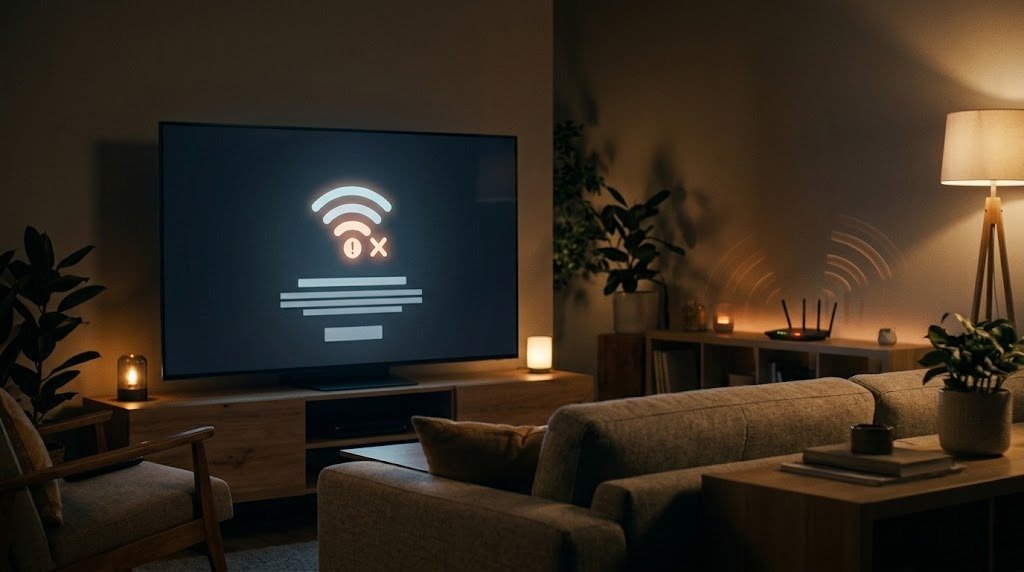
A smart TV may fail to connect to Wi-Fi because of a temporary software problem, an incorrect password, weak signal strength, router settings, or an issue with the internet service. In many cases, you can solve the problem by restarting the equipment and reconnecting the TV to the network.
Follow the steps below in order. Test the connection after each step and stop when the TV reconnects successfully. Menu names vary by television, so consult the manufacturer’s manual if you cannot find a particular setting.
1. Check Whether Other Devices Have Internet Access
First, determine whether the problem affects only the TV or your entire home network.
How to test the connection
- Take a phone, tablet, or laptop near the TV.
- Confirm that it is connected to the same Wi-Fi network the TV uses.
- Open a website or play an online video.
- If possible, test a second device.
What the results mean
- Other devices work: The problem is probably related to the TV, its saved network information, or compatibility with the router.
- Other devices also fail: The router, modem, or internet service is likely responsible.
- Devices work near the router but not near the TV: Weak Wi-Fi coverage or interference may be the problem.
- The TV connects but streaming apps fail: The issue may involve the TV’s internet access, date and time, DNS settings, software, or an individual app.
Check your internet provider’s service-status page if several devices are offline.
2. Restart the Smart TV
A restart can clear temporary network and software errors.
Simply turning the TV off with the remote may place it in standby rather than fully restarting it.
Perform a basic power restart
- Turn off the TV normally.
- Unplug its power cable from the wall outlet or approved surge protector.
- Wait approximately one minute.
- Reconnect the power cable.
- Turn the TV on.
- Wait for it to finish starting.
- Try connecting to Wi-Fi again.
Some televisions also have a Restart option in the system, support, or power menu. Use the normal restart command if your TV provides one.
Do not repeatedly unplug the television during an update or while it is starting.
3. Restart the Router and Modem
If the TV still will not connect, restart your network equipment. This can clear temporary connection, address-assignment, or routing problems.
Restart separate modem and router units
- Save any work that requires internet access.
- Unplug the router.
- Unplug the modem.
- Wait approximately one minute.
- Reconnect the modem first.
- Wait until its connection lights stabilize.
- Reconnect the router.
- Allow several minutes for Wi-Fi and internet access to return.
- Try connecting the TV again.
If you have a single combined modem-router unit, unplug that device, wait about a minute, and reconnect it.
Do not press the router’s recessed Reset button. That button can erase the network name, password, and other settings.
4. Confirm the Wi-Fi Network and Password
An incorrect password is a common cause of connection failures.
Check the network name
Make sure you are selecting your own network. Nearby networks can have similar names, especially if they use default router names.
If your router broadcasts separate networks, you may see names such as:
- HomeWiFi
- HomeWiFi-2.4
- HomeWiFi-5G
- HomeWiFi-Guest
Choose the network you normally use unless you are testing another band.
Enter the password carefully
Wi-Fi passwords are case-sensitive. Check for:
- Uppercase and lowercase letters
- Similar characters, such as
0andO - Similar characters, such as
1,I, andl - Spaces entered accidentally
- Incorrect symbols
- An old password saved by the TV
Use the television’s option to reveal the password temporarily, if available. Confirm the password using a device that is not already connected automatically, or check it in the router’s management settings.
Do not confuse the Wi-Fi password with the router administrator password.
5. Check the Wi-Fi Signal Near the TV
A television may detect the network but fail to connect reliably when the signal is weak.
Test the signal
- Take a phone or laptop to the TV’s location.
- Connect it to the same Wi-Fi network.
- Check whether the connection remains stable.
- Open a video or run a speed test.
- Compare the result with a test performed near the router.
Signal bars provide only a general indication. A device may display a network name while the connection is still too weak or unstable for reliable use.
Improve the signal
Try these safe adjustments:
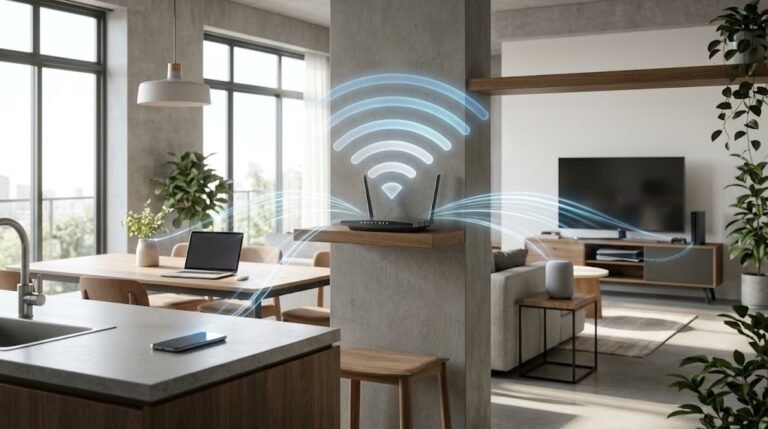
- Move the router into a more central, open location.
- Raise the router onto a table or shelf.
- Move it away from cabinets, large appliances, and metal objects.
- Reduce the number of walls between the router and TV.
- Avoid placing the router behind the television.
- Keep the router away from microwaves and other potential interference sources.
- Reposition adjustable antennas according to the router manufacturer’s instructions.
If possible, temporarily move the router closer to the TV. If the connection begins working, coverage is probably the main issue.
For a permanent solution, consider a properly positioned mesh node or wired access point. Place wireless nodes where they can still receive a strong signal—not inside the dead zone.
6. Forget the Network and Reconnect
The TV may have saved an old password or damaged network configuration.
Remove the saved network
- Open the TV’s Settings menu.
- Select Network, Connections, or Internet.
- Open the Wi-Fi or wireless-network section.
- Select your home network.
- Choose Forget, Remove, Delete, or Disconnect.
- Restart the TV.
- Return to the Wi-Fi menu.
- Select the correct network.
- Enter the password again.
- Run the TV’s connection test, if available.
This step does not normally affect your apps, channels, or other TV settings. It removes only the saved connection information for that network.
7. Review the TV’s Network Settings
Most home networks should work with automatic settings. Incorrect manual settings can prevent the TV from connecting.
Use automatic network configuration
In the TV’s network settings, look for options related to:
- IP address
- Subnet mask
- Gateway or router
- DNS
- Proxy server
For normal troubleshooting, select:
- IP address: Automatic or DHCP
- DNS: Automatic
- Proxy: Off or None, unless your network administrator requires one
Avoid entering random IP addresses or changing advanced values without recording the original settings.
Run the built-in network test
Many smart TVs provide a network-status or connection-test screen. It may show separate stages such as:
- TV connected to Wi-Fi
- TV connected to router
- Router connected to internet
- TV connected to online services
The stage that fails can help identify the problem:
- TV cannot reach router: Check password, signal, band, or router security.
- TV reaches router but not internet: Check modem, provider service, DNS, or router settings.
- Internet works but a TV service fails: Check date and time, software, service status, or app settings.
8. Check the TV’s Date and Time
An incorrect date or time can interfere with secure internet connections and online services.
Correct the settings
- Open Settings.
- Go to System, General, or Date and Time.
- Enable Automatic Date and Time or Use Network Time.
- Confirm the time zone.
- Verify that the displayed date and time are correct.
- Restart the TV.
- Test the internet connection again.
If automatic time is incorrect, manually set the correct date, time, and time zone temporarily. Once the internet connection works, try returning to automatic time.
9. Update the TV’s Software
TV software updates can fix networking, security, app, and compatibility problems.
Update through the internet
If the TV has intermittent access:
- Open Settings.
- Find Support, System, About, or Software Update.
- Select Check for Updates.
- Install an available update.
- Keep the TV connected to power.
- Allow it to restart if required.
Do not turn off or unplug the TV while an update is being installed.
Update without Wi-Fi
If the TV cannot connect at all, the manufacturer may provide an official update that can be installed from a USB drive.
Use only:
- The official manufacturer support website
- The exact TV model number
- The manufacturer’s documented installation process
- A compatible USB drive prepared as instructed
Do not install software intended for a similar-looking model. Incorrect firmware may prevent the television from operating properly.
If the instructions are unclear, contact manufacturer support instead of attempting the update.
10. Try Another Wi-Fi Network
Connecting the TV to another network can reveal whether the TV or home router is causing the problem.
Use a temporary phone hotspot
If your mobile plan and phone support hotspot use:
- Enable the phone’s personal hotspot.
- Give it a simple temporary network name and secure password.
- Place the phone near the TV.
- Search for wireless networks on the TV.
- Connect the TV to the hotspot.
- Test a basic online function.
- Disconnect when finished to avoid unnecessary mobile-data usage.
Interpret the result
- TV connects to the hotspot: The television’s Wi-Fi hardware is probably working. Focus on the home router’s bands, security mode, channel, or address settings.
- TV detects the hotspot but cannot connect: Recheck the password and hotspot compatibility.
- TV cannot detect any network: Restart and update the TV. Its wireless adapter may have a problem.
- TV connects but online services still fail: Check the date, software, account, service availability, or DNS.
Mobile hotspots can consume data quickly when streaming. Use them only for a short diagnostic test unless your plan allows extended use.
11. Check Router Compatibility
Older smart TVs may not support every modern wireless setting. A router upgrade or configuration change can expose compatibility problems even when newer phones and computers connect successfully.
Check the Wi-Fi band
Many older televisions support only 2.4 GHz. Some support both 2.4 GHz and 5 GHz, while support for newer bands is less common.
If the TV cannot see your network:
- Confirm that 2.4 GHz Wi-Fi is enabled on the router.
- Temporarily use separate names for the 2.4 GHz and 5 GHz networks if your router permits it.
- Try connecting the TV to 2.4 GHz.
- If 5 GHz is supported, test that band separately.
Do not assume that “5G” in a network name refers to mobile 5G service. In a home Wi-Fi name, it often means the 5 GHz Wi-Fi band.
Review the security mode
An older TV may not support a router configured to use only a newer security mode.
Check the TV’s manual for supported security methods. If the router recently changed to a newer mode, a compatible transition or mixed mode may help. Use only options supported by both devices, and avoid outdated or unsecured modes.
Do not disable Wi-Fi security as a permanent solution. If you temporarily create a test network, secure it and remove it when testing is complete.
Check hidden networks and special characters
Some televisions have difficulty joining:
- Hidden Wi-Fi networks
- Network names with unusual symbols
- Very long network names
- Networks that require a webpage login
- Business or school networks requiring individual credentials
For testing, make the network visible and use a simple name containing letters and numbers. Record the original settings before changing anything.
Check channel compatibility
A TV purchased for one region may not recognize every channel used in another region. Automatic router channel selection can also choose a channel an older TV does not support.
If the TV sees other networks but not yours:
- Confirm that the router’s country or region is set correctly.
- Set the affected band to a commonly supported channel allowed in your location.
- Save the setting and restart the Wi-Fi connection.
- Test the TV again.
Only select channels permitted in your country. Do not change regional settings to bypass local requirements.
Check access controls
Review the router for:
- A paused or blocked TV
- Parental controls
- Device access schedules
- MAC-address filtering
- A full list of reserved addresses
- A limit on connected devices
- Guest-network restrictions
- Client isolation
If MAC filtering is enabled, the TV’s wireless address may need to be added to the allowed list. Also check whether the TV uses a private or randomized address feature, if available.
12. Try DNS Troubleshooting
DNS translates service names into the numerical addresses used by internet connections. A DNS problem may be present when the TV connects to the router but cannot open apps or reach online services.
Begin with automatic DNS
- Open the TV’s network settings.
- Set IP configuration to Automatic.
- Set DNS to Automatic.
- Save the settings.
- Restart the TV.
- Run the connection test.
Automatic DNS is the correct starting point for most home networks.
Test a manual DNS address
If other devices have internet access and the TV reaches the router but reports an internet or server error, you may test a reputable public DNS resolver or the DNS address recommended by your internet provider.
Before changing it:
- Photograph or write down the current settings.
- Change only the DNS field.
- Leave the IP address, subnet, and gateway on automatic unless the TV requires otherwise.
- Restart the TV.
- Test several apps.
- Return to automatic DNS if nothing improves.
A manual DNS address will not fix weak Wi-Fi, an incorrect password, a provider outage, or incompatible router security.
If DNS settings are controlled by a workplace, school, apartment network, or parental-control service, consult its administrator before making changes.
13. Try a Wired Ethernet Connection
Ethernet can provide a stable connection when Wi-Fi coverage is weak or interference is difficult to avoid.
When Ethernet may help
Consider a wired connection when:
- The router is near the TV.
- The home has Ethernet wall outlets.
- Streaming frequently buffers despite adequate internet speed.
- The TV has weak Wi-Fi reception.
- The wireless network is crowded.
- You want a stable connection for high-quality streaming.
How to test Ethernet
- Check whether the TV has an Ethernet or LAN port.
- Connect a suitable Ethernet cable from the router to the TV.
- Open the TV’s network settings.
- Select Wired, Ethernet, or LAN.
- Use automatic network settings.
- Run the connection test.
If Ethernet works while Wi-Fi does not, the internet connection is available and the problem is likely related to wireless coverage, compatibility, or the TV’s Wi-Fi adapter.
Some TVs have Ethernet ports with lower maximum speeds than newer networking equipment, but a stable wired link can still be more reliable than a weak wireless one.
Avoid running loose cables across walking areas. Secure and route cables safely.
14. Reset the TV’s Network Settings
A network reset removes saved Wi-Fi details and restores network-related options to their defaults.
Use it when:
- Forgetting the network did not help.
- The TV retains incorrect IP or DNS information.
- You recently changed routers or network names.
- Network menus behave unexpectedly.
- The TV repeatedly reconnects using old settings.
Before resetting
Record:
- Your Wi-Fi network name
- Your Wi-Fi password
- Any required manual network values
- Proxy or special network settings
- Relevant account or app information, if the TV warns that it may be affected
Perform a network reset
- Open Settings.
- Find Network, General, System, or Support.
- Select Reset Network or a similarly named option.
- Confirm the reset.
- Restart the TV if prompted.
- Reconnect to the correct Wi-Fi network.
- Enter the password.
- Run the connection test.
A network reset is different from a factory reset. It should not normally remove every app or television preference, but behavior varies by model.
15. Consider a Factory Reset Only as a Last Resort
A factory reset returns the TV to its original setup state. It may remove:
- Wi-Fi settings
- Signed-in accounts
- Downloaded apps
- Picture and sound adjustments
- Channel settings
- Accessibility preferences
- Parental controls
- Device names and input settings
- Custom home-screen arrangements
Use a factory reset only after completing the safer troubleshooting steps and confirming that no important information will be lost.
Before performing a factory reset
- Write down important settings.
- Confirm that you know your account usernames and passwords.
- Photograph custom picture, sound, and accessibility settings.
- Check whether recordings or channel configurations could be affected.
- Read the reset instructions for the exact TV model.
- Make sure the TV has stable power.
- Disconnect unnecessary external devices if the manufacturer recommends it.
After the reset, complete the initial setup, install available updates, and test Wi-Fi before reinstalling every app.
A factory reset will not repair faulty Wi-Fi hardware or fix an internet-provider outage.
16. Contact Manufacturer or Internet Provider Support
Contact the TV manufacturer when:
- The TV cannot detect any wireless networks.
- Wi-Fi disappears from the settings menu.
- The network option is disabled and cannot be selected.
- The TV fails to connect to both home Wi-Fi and a phone hotspot.
- The TV repeatedly loses its saved network information.
- An official software update fails.
- The manufacturer’s diagnostic test reports a hardware error.
- Ethernet works but Wi-Fi consistently fails after resets and updates.
- The problem began after a software update and does not affect other devices.
Have the following information ready:
- TV brand and exact model number
- Software or firmware version
- Error message or error code
- Router model
- Wi-Fi band being used
- Troubleshooting steps already completed
- Whether the TV connects to a hotspot
- Whether Ethernet works
Contact your internet provider when multiple devices cannot access the internet, the modem shows an error, or the wired connection is also unavailable.
Avoid opening the television or attempting internal hardware repairs. TVs can contain components that remain hazardous even after power is disconnected. Use authorized repair services for hardware problems.
Troubleshooting Checklist
Work through this checklist in order:
- Incomplete to-do itemConfirm whether other devices can access the internet.
- Incomplete to-do itemCheck for an internet-provider outage.
- Incomplete to-do itemRestart the TV completely.
- Incomplete to-do itemRestart the modem and router.
- Incomplete to-do itemSelect the correct Wi-Fi network.
- Incomplete to-do itemRe-enter the Wi-Fi password carefully.
- Incomplete to-do itemCheck the signal at the TV’s location.
- Incomplete to-do itemMove or reposition the router if possible.
- Incomplete to-do itemForget the saved network and reconnect.
- Incomplete to-do itemSet IP and DNS options to automatic.
- Incomplete to-do itemDisable unnecessary proxy settings.
- Incomplete to-do itemRun the TV’s built-in network test.
- Incomplete to-do itemCorrect the TV’s date, time, and time zone.
- Incomplete to-do itemInstall official TV software updates.
- Incomplete to-do itemTest the TV with a phone hotspot.
- Incomplete to-do itemConfirm that the TV supports the router’s Wi-Fi band.
- Incomplete to-do itemCheck router security-mode compatibility.
- Incomplete to-do itemReview channel, device-blocking, and access-control settings.
- Incomplete to-do itemTest a different DNS resolver only if appropriate.
- Incomplete to-do itemTry an Ethernet connection.
- Incomplete to-do itemReset the TV’s network settings.
- Incomplete to-do itemConsider a factory reset only as a last resort.
- Incomplete to-do itemContact the manufacturer if the TV may have a hardware fault.
Frequently Asked Questions
Why can my smart TV see the Wi-Fi network but not connect?
The most common causes are an incorrect password, weak signal, incompatible router security, or damaged saved network information. Re-enter the password, move the router closer, forget and reconnect to the network, and confirm that the TV supports the router’s security mode.
Why does my TV say it is connected to Wi-Fi but has no internet?
The TV may be connected to the router while the router lacks internet access. Test other devices, restart the modem and router, set IP and DNS to automatic, and check for an internet-provider outage. An incorrect date or time can also prevent certain online services from working.
Why does my smart TV keep disconnecting from Wi-Fi?
Possible causes include weak signal strength, interference, router channel changes, power-saving behavior, outdated TV software, or an overloaded network. Improve router placement, update the TV and router, test another Wi-Fi band, and compare the connection with Ethernet.
Should I connect my TV to 2.4 GHz or 5 GHz Wi-Fi?
Use 5 GHz when the TV is relatively close to the router and has a strong signal. It can provide better performance in many environments. Use 2.4 GHz when the TV is farther away or the signal must pass through several walls. Test both and choose the more stable connection rather than relying only on the highest speed result.
Will a factory reset fix the TV’s Wi-Fi?
It may fix deeply stored software or configuration problems, but it should be a last resort because it can remove accounts, apps, channels, and personal settings. It will not fix a provider outage, weak coverage, incompatible router settings, or failed Wi-Fi hardware.
Conclusion
When a smart TV will not connect to Wi-Fi, begin with the simplest checks: test other devices, restart the TV and router, verify the password, and reconnect to the network. Then review signal strength, automatic network settings, date and time, software updates, and router compatibility.
Testing a phone hotspot and an Ethernet connection can help determine whether the problem is the TV, the home Wi-Fi network, or the internet service. Reset network settings only after basic troubleshooting, and reserve a full factory reset for persistent software problems. If the TV cannot detect or connect to any network after these steps, contact the manufacturer for model-specific support.