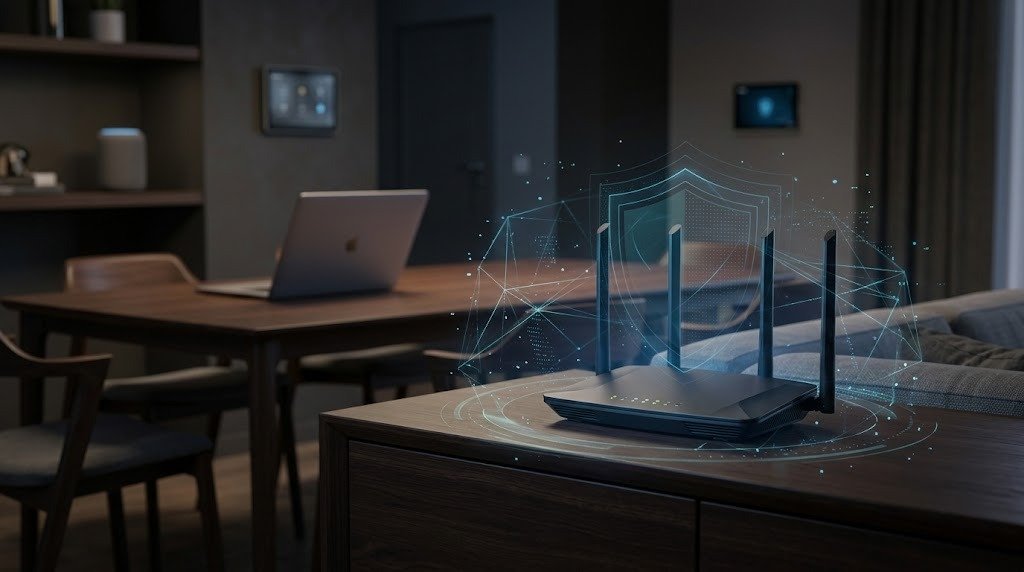
Best Ways to Secure Your Home Wi-Fi Network
Your home Wi-Fi network connects laptops, phones, televisions, security cameras, smart speakers, and other devices to the internet. If the network is poorly secured, an unauthorized person may use your connection, interfere with connected devices, or attempt to access personal information.
You do not need to be a cybersecurity expert to improve your home Wi-Fi security. A strong password, modern security settings, updated router software, and regular device checks can prevent many common problems.
Why Home Wi-Fi Security Matters
Your router acts as the main gateway between your home devices and the internet. It also allows devices inside your home to communicate with one another.
An insecure network may expose you to several risks:
- Unauthorized people using your internet connection
- Slower performance caused by unwanted devices
- Attempts to access shared files or poorly secured devices
- Changes to router or DNS settings
- Compromised smart home devices
- Exposure of browsing or account information through malicious redirection
- Loss of control over cameras, doorbells, or other connected equipment
- Use of your internet connection for unwanted or illegal activity
Securing Wi-Fi does not protect against every online threat. You still need strong account passwords, software updates, multifactor authentication, safe browsing habits, and device-level security. However, router security creates an important first layer of protection.
Understand the Two Important Router Passwords
Most routers have at least two separate credentials:
- Wi-Fi password: Used by phones, computers, and smart devices to join the wireless network.
- Router administrator password: Used to open the router’s settings.
These passwords protect different things and should not be identical.
The Wi-Fi password controls who can connect to the network. The administrator password controls who can change the router’s security, network name, DNS, firewall, and other settings.
Create a Strong Wi-Fi Password
A strong Wi-Fi password should be difficult for another person to guess but practical for your household to use.
Characteristics of a good Wi-Fi password
Use a password that is:
- Long
- Unique to your home network
- Not based on personal information
- Different from your email and other account passwords
- Difficult to guess from your name, address, or phone number
A long passphrase made from several unrelated words can be easier to remember than a short collection of random characters. Add numbers or symbols if your router requires them.
Avoid passwords such as:
- Your phone number
- Your home address
- A family member’s name
- A pet’s name
- A birth date
password123- The router brand or model
- The network name
- A password used for another account
Do not publish your main Wi-Fi password on a visible sign. Use a guest network for visitors instead.
Change a weak or exposed password
Change the Wi-Fi password if:
- It is still the original password printed on the router.
- Too many people know it.
- You shared it with temporary visitors or workers.
- An unknown device appears on the network.
- You suspect unauthorized access.
- A former resident still knows it.
- The password has been posted publicly or sent through an insecure channel.
Changing the password disconnects most devices. Be prepared to reconnect your trusted phones, computers, televisions, and smart home products.
Use Modern Wireless Security Standards
Wi-Fi security standards determine how wireless traffic and access are protected.
Prefer WPA3 when available
Use WPA3-Personal if your router and devices support it. WPA3 is the modern choice for home networks.
Some older devices may not work with a WPA3-only network. In that case, a router may offer a WPA2/WPA3 transition or mixed mode. This can provide compatibility while allowing newer devices to use WPA3.
Use WPA2 with AES when necessary
If WPA3 is unavailable, use WPA2-Personal with AES. Router interfaces may label this setting as:
- WPA2-Personal
- WPA2-PSK
- WPA2-AES
- WPA2-CCMP
The exact wording varies by manufacturer.
Avoid outdated options
Do not use:
- WEP
- Original WPA
- WPA with TKIP
- Open or unsecured Wi-Fi
These options are outdated and do not provide adequate protection for a modern home network.
If an old device works only with outdated security, consider replacing the device rather than weakening security for the entire network. Another option may be to place it on an isolated network, but only if the router supports secure isolation and you understand the configuration.
Disable WPS when possible
Wi-Fi Protected Setup, or WPS, can make it easier to connect devices by pressing a button or entering a PIN. If you do not use it, disable it in the router settings—particularly PIN-based WPS.
Connect devices by selecting the network and entering the Wi-Fi password instead.
Change the Default Router Administrator Credentials
Routers are often shipped with default administrator details. If those credentials remain unchanged, someone with local network access may be able to change important settings.
Create a unique administrator password
- Open the router’s official app or management page.
- Sign in with the current administrator account.
- Find Administration, System, Management, or Account Settings.
- Change the administrator password.
- Use a unique password that is different from the Wi-Fi password.
- Save it in a trusted password manager.
- Sign out and confirm that the new password works.
If the router allows you to change the administrator username, replace obvious defaults such as admin.
Do not share the administrator password with guests. Most visitors need only the guest Wi-Fi password.
Use the correct management address
Open the router settings through its official mobile app or the local address listed in its documentation. Be cautious of search advertisements or unofficial websites that claim to provide router login services.
The legitimate local router page should not require payment or ask you to install unrelated software.
Keep Router Firmware Updated
Router firmware is the software that controls the device. Updates may correct security vulnerabilities, improve stability, and address compatibility problems.
Check for updates
- Open the router’s official app or administration page.
- Go to Firmware, Software Update, System, or Administration.
- Check for available updates.
- Install updates only from the router manufacturer or internet provider.
- Keep the router connected to power while the update is installed.
- Allow it to restart if necessary.
Do not unplug the router during an update.
Enable automatic updates
If the router supports automatic security or firmware updates, consider enabling them. Some internet-provider routers receive updates automatically and may not include a manual update button.
Check for updates periodically even when automatic updates are enabled. This also helps you confirm whether the manufacturer still supports the router.
Create a Guest Network
A guest network gives visitors internet access without giving them full access to your main home network.
Benefits of a guest network
It can help:
- Keep your main Wi-Fi password private
- Separate visitors from personal computers and storage devices
- Make temporary access easier to remove
- Reduce exposure if a visitor’s device is infected
- Provide a separate place for selected smart home devices
Configure it safely
- Open the router’s guest-network settings.
- Enable a guest network on the necessary Wi-Fi band.
- Give it a clear name that does not reveal personal information.
- Protect it with WPA3 or WPA2-AES.
- Create a strong password.
- Disable access to the local network, if the router offers that option.
- Turn off guest-to-guest communication when appropriate.
- Disable the network when it is no longer needed, or change its password periodically.
Avoid creating an open guest network unless there is a specific, well-managed reason to do so.
Some smart home products require communication with a phone, hub, speaker, or other device on the main network. Test required functions before placing them on an isolated guest network.
Check Which Devices Are Connected
Reviewing the connected-device list can help you find old, forgotten, or unfamiliar equipment.
Find the device list
In the router’s app or settings, look for:
- Connected Devices
- Client List
- Attached Devices
- Network Map
- Device Manager
- DHCP Clients
- Wireless Clients
The list may show:
- Device name
- IP address
- Hardware or MAC address
- Connection type
- Wi-Fi band
- Current status
- Manufacturer
- Data usage
Identify your devices
Make a simple inventory of:
- Phones
- Tablets
- Computers
- Televisions
- Game consoles
- Printers
- Smart speakers
- Cameras
- Doorbells
- Smart plugs
- Thermostats
- Hubs and bridges
- Streaming devices
Give devices recognizable names in the router interface when that feature is available.
An unfamiliar name does not automatically mean an intruder is present. Devices may appear under generic names, manufacturer names, or random-looking identifiers. Phones and computers may also use private or randomized hardware addresses.
Before blocking a device, turn one of your devices off and refresh the list to see which entry disappears.
Remove Unknown Devices Safely
If you confirm that a device is unauthorized, take the following steps.
Step 1: Block or pause the device
Use the router’s device-management controls to block, pause, or deny access to the device.
Blocking alone may not be sufficient because the device may reconnect with a different address.
Step 2: Change the Wi-Fi password
Create a new, strong password. This forces devices using the old password to disconnect.
Reconnect only your trusted devices.
Step 3: Check wireless security
Confirm that the router uses:
- WPA3-Personal, or
- WPA2-Personal with AES
Disable WPS if it is not needed.
Step 4: Secure the router account
Change the router administrator password. Also check whether an unfamiliar administrator account has been added.
Step 5: Review the router settings
Look for unexpected changes to:
- DNS servers
- Remote administration
- Port forwarding
- Firewall settings
- Guest networks
- Parental controls
- Wi-Fi name
- Wi-Fi security
- Administrator accounts
If you find changes you did not make, record them before correcting them. Update the router and contact its manufacturer or your internet provider if you need help.
Step 6: Update connected devices
Install updates on computers, phones, smart devices, hubs, and the router. Run a reputable security scan on compatible computers if you suspect a device has been compromised.
Keep the Router Firewall Enabled
Most home routers include a firewall that helps limit unsolicited connections from the internet.
Recommended approach
For most households:
- Leave the router firewall enabled.
- Keep its default protective settings unless you have a specific reason to change them.
- Enable IPv6 firewall protection if you use IPv6 and the router provides a separate setting.
- Do not expose a device directly to the internet unless absolutely necessary.
- Remove old port-forwarding rules.
- Avoid placing a device in a DMZ without understanding the security consequences.
A router firewall does not replace the security software and built-in firewall on your computers. Keep device-level firewalls enabled as well.
Be careful with advanced rules
Incorrect firewall settings can block legitimate services or expose devices. Record existing settings before changing them, and use the router manufacturer’s documentation.
If an app or game asks you to disable the entire firewall, look for a safer, narrowly defined configuration or contact the service’s official support team.
Disable Unnecessary Remote Administration
Remote administration allows someone to manage the router from outside the home network. Most households do not need this feature.
Turn it off if unused
Look for settings such as:
- Remote Management
- Remote Administration
- Web Access from WAN
- Internet-side Administration
- Cloud Management
- Remote GUI
Disable unnecessary remote access.
If you need remote management:
- Use the manufacturer’s supported secure method.
- Enable multifactor authentication when available.
- Use a unique account password.
- Keep the router updated.
- Limit access to trusted accounts or addresses if the router supports it.
- Avoid exposing an unencrypted management page to the internet.
Cloud-based router apps may use a different setting from traditional remote web administration. Review the account and remote-access options for both.
Review Other Unnecessary Router Features
Every enabled feature can increase complexity. Turn off services you do not use, particularly when they expose management or devices beyond your home.
Review:
- WPS
- File sharing from the router
- USB storage sharing
- Media servers
- FTP access
- Telnet or SSH management
- UPnP
- Unused guest networks
- Unused VPN servers
- Old port-forwarding rules
Some features, including UPnP, may be needed by certain games, calling apps, or smart devices. Do not disable a feature blindly. Check what depends on it, turn it off temporarily, and confirm that important services still work.
Use Safe Smart Home Device Practices
Smart home products can include cameras, speakers, displays, locks, doorbells, lights, thermostats, plugs, sensors, appliances, and hubs.
These devices often stay connected continuously, so they should be treated as part of your security plan.
Research before buying
Before purchasing, check:
- Whether the manufacturer provides security updates
- How long the product is expected to receive support
- Whether multifactor authentication is available
- Whether data is stored locally or in the cloud
- Whether a subscription is required
- What happens if the manufacturer ends support
- Whether the product can be reset and transferred securely
- Which permissions its app requests
An inexpensive device may cost more in the long run if it quickly loses support or requires a subscription.
Change default credentials
If a smart device has a default username or password, change it during setup. Use a unique password for its account.
Do not reuse the same password across cameras, doorbells, router accounts, and email.
Enable multifactor authentication
Enable multifactor authentication for services involving:
- Security cameras
- Video doorbells
- Smart locks
- Alarm systems
- Cloud recordings
- Home automation administrator accounts
Your email account is especially important because password-reset links for smart home services may be sent there.
Limit permissions
A lighting app may not need access to your contacts, microphone, or precise location at all times. Review mobile-app permissions and allow only what is needed for features you use.
Protect IoT Devices
The Internet of Things, or IoT, refers to everyday connected products such as smart plugs, cameras, sensors, appliances, and speakers.
Place IoT devices on a separate network when practical
If your router supports network separation, consider placing compatible IoT products on:
- A dedicated IoT network
- An isolated guest network
- A separate network segment managed by a capable router
This can limit their ability to reach personal computers or storage devices.
However, some IoT products need local communication with phones, hubs, or speakers. Network isolation may prevent discovery, casting, printing, or automation. Test each device after making changes.
Keep an IoT inventory
Maintain a list containing:
- Device name
- Manufacturer
- Model
- Installation location
- Associated account
- Update method
- Purchase date
- Support status
- Whether it stores sensitive information
Review the list once or twice a year. Remove abandoned devices from both the network and their online accounts.
Update devices and hubs
Enable automatic updates when available. Check cameras, doorbells, hubs, speakers, and other important products manually if they do not update automatically.
A central hub can also require firmware updates.
Remove devices securely
Before selling, recycling, or giving away a smart device:
- Remove it from your smart home account.
- Delete stored recordings or personal data where applicable.
- Perform the manufacturer’s factory-reset process.
- Remove associated permissions and shared users.
- Remove the device from the router.
- Confirm that it no longer appears in your account.
Recognize Suspicious Network Activity
No single warning sign proves that your network has been compromised. Look for combinations of unusual behavior.
Possible warning signs include:
- Unknown devices repeatedly appearing
- Wi-Fi settings changing without permission
- The router administrator password no longer working
- Unexpected DNS or port-forwarding settings
- A new guest network you did not create
- Cameras or smart devices behaving unexpectedly
- Unexplained account-login alerts
- Devices connecting or disconnecting at unusual times
- Browser redirects on multiple devices
- A sudden, unexplained increase in network usage
- Router settings returning after you change them
- Security features becoming disabled
- Unfamiliar administrator accounts
Slow internet alone is not proof of unauthorized access. Congestion, provider problems, updates, cloud backups, weak signals, and streaming can all reduce performance.
What to do if you notice warning signs
- Disconnect or block confirmed unknown devices.
- Change the Wi-Fi password.
- Change the router administrator password.
- Update the router’s firmware.
- Review DNS, firewall, remote-access, guest-network, and port-forwarding settings.
- Update connected devices.
- Change passwords for affected smart home accounts.
- Enable multifactor authentication.
- Run security scans on supported computers.
- Contact the router manufacturer or internet provider if settings continue changing.
If the router appears compromised, a factory reset may be appropriate. Record essential internet settings first, follow the manufacturer’s instructions, update the router immediately after the reset, and configure it manually. Avoid restoring a backup that may contain unwanted settings.
Use a Safe Network Name
Your Wi-Fi network name, also called the SSID, does not need to reveal who you are or where you live.
Avoid including:
- Your full name
- Your apartment number
- Your street address
- Your phone number
- Your router password
- Information suggesting that valuable devices are present
A neutral network name is sufficient.
Hiding the network name is not a meaningful substitute for encryption and a strong password. Devices can still reveal the existence of the network, and hiding it may make connection management less convenient.
Back Up Important Router Information
Store the following information securely:
- Router make and model
- Serial number
- Internet provider support details
- Wi-Fi network name
- Administrator login address
- Recovery instructions
- Custom internet settings
- A list of intentional port-forwarding rules
- The date of the most recent firmware check
Keep passwords in a trusted password manager rather than an unprotected note or photograph.
If you create a router-configuration backup, protect the file carefully. It may contain sensitive network settings.
When to Replace an Old Router
A router should not be used indefinitely. Replacement may be appropriate when:
- The manufacturer no longer provides security updates.
- The last firmware release is several years old and support has ended.
- It supports only WEP, WPA, or other outdated security.
- It cannot use WPA2-AES or WPA3.
- It has unresolved security vulnerabilities.
- It frequently crashes or loses settings.
- It cannot reliably support your devices.
- Its management interface lacks basic security controls.
- It cannot receive required updates.
- The internet provider no longer supports it.
- There are unexplained configuration changes after a proper reset and update.
Age alone does not determine whether a router is secure. The more important questions are whether it still receives updates, supports modern security, and operates reliably.
When replacing a router:
- Update the new router before connecting all devices.
- Change its administrator password.
- Configure WPA3 or WPA2-AES.
- Create a strong Wi-Fi password.
- Disable unnecessary remote management and WPS.
- Reconnect only trusted devices.
- Factory-reset the old router.
- Recycle or return it according to local guidance.
If the old router belongs to your internet provider, follow its return instructions.
Home Wi-Fi Security Checklist
Router and Wi-Fi settings
- Incomplete to-do itemChange the default router administrator password.
- Incomplete to-do itemUse a different password for Wi-Fi and router administration.
- Incomplete to-do itemUse WPA3-Personal when supported.
- Incomplete to-do itemOtherwise, use WPA2-Personal with AES.
- Incomplete to-do itemAvoid WEP, original WPA, TKIP, and open Wi-Fi.
- Incomplete to-do itemCreate a long, unique Wi-Fi password.
- Incomplete to-do itemDisable WPS if it is not needed.
- Incomplete to-do itemKeep the router firewall enabled.
- Incomplete to-do itemDisable unnecessary remote administration.
- Incomplete to-do itemRemove unused port-forwarding rules.
- Incomplete to-do itemReview optional services such as USB sharing and UPnP.
- Incomplete to-do itemUse a network name that does not reveal personal information.
Updates and monitoring
- Incomplete to-do itemEnable automatic router updates when available.
- Incomplete to-do itemCheck periodically for firmware updates.
- Incomplete to-do itemReview the connected-device list.
- Incomplete to-do itemIdentify and label trusted devices.
- Incomplete to-do itemBlock confirmed unauthorized devices.
- Incomplete to-do itemConfirm that DNS settings have not changed unexpectedly.
- Incomplete to-do itemCheck guest networks and administrator accounts.
- Incomplete to-do itemReplace a router that no longer receives security support.
Guest and smart home security
- Incomplete to-do itemCreate a secured guest network for visitors.
- Incomplete to-do itemPrevent guest access to local devices when possible.
- Incomplete to-do itemUse unique passwords for smart home accounts.
- Incomplete to-do itemEnable multifactor authentication.
- Incomplete to-do itemUpdate smart devices and hubs.
- Incomplete to-do itemRemove unused devices from apps and accounts.
- Incomplete to-do itemSeparate IoT devices when practical.
- Incomplete to-do itemReview camera, microphone, and location permissions.
- Incomplete to-do itemFactory-reset smart devices before selling or recycling them.
Frequently Asked Questions
1. What is the best security setting for home Wi-Fi?
Use WPA3-Personal if your router and devices support it. If older devices cannot connect, use a WPA2/WPA3 transition mode or WPA2-Personal with AES. Avoid WEP, original WPA, TKIP, and unsecured networks.
2. How often should I change my Wi-Fi password?
There is no need to change a strong, unique Wi-Fi password on a fixed schedule if the network remains secure. Change it when someone who should no longer have access knows it, an unknown device connects, the password is exposed, or you suspect unauthorized activity.
3. Can someone access my network just because they can see its name?
Seeing a Wi-Fi network name does not provide access. A person would still need the password or another way to bypass its security. Use modern encryption, a strong password, updated firmware, and disabled WPS. Hiding the network name does not provide meaningful protection.
4. Should smart home devices use a guest network?
It can be helpful if the guest network isolates devices from your personal computers and files. However, some smart products need local communication with phones, hubs, speakers, or displays. Test all required features before permanently isolating them.
5. What should I do if I find an unknown device on my Wi-Fi?
First, confirm that it is not one of your devices using a generic name or randomized hardware address. If it is unauthorized, block it, change the Wi-Fi and router administrator passwords, disable WPS, update the router, and review DNS, remote-access, guest-network, and port-forwarding settings.
Conclusion
The most effective home Wi-Fi security measures are also straightforward: use modern encryption, choose strong and unique passwords, change default router credentials, install updates, and review connected devices regularly.
Keep the router firewall enabled, disable remote administration when you do not need it, and place visitors or compatible smart devices on separate networks where practical. Protect smart home accounts with unique passwords and multifactor authentication, and replace routers that no longer receive security updates.
Home Wi-Fi security is not a one-time task. A brief review every few months can help you find forgotten devices, outdated settings, and unsupported equipment before they become serious problems.