How to Improve Your Home Network for Multiple Devices
A modern home may have dozens of connected devices. Phones, laptops, smart televisions, game consoles, cameras, speakers, appliances, and streaming devices may all share the same internet connection and home network.
Simply having many devices connected does not always cause a problem. Performance usually declines when several devices are actively transferring data, competing for Wi-Fi airtime, or operating in areas with weak coverage. A poorly positioned or outdated router can make the problem worse.
This guide explains how to build a faster, more reliable home network without requiring advanced technical knowledge.
Why Multiple Devices Can Affect Network Performance
Every connected device uses network resources. Some transfer only small amounts of data, while others continuously download or upload large amounts.
For example:
- A smart plug may send only occasional status updates.
- A phone may automatically upload photos.
- A television may stream high-quality video.
- A laptop may download a large software update.
- A security camera may upload video throughout the day.
- A game console may download a very large game.
- A video call may continuously send and receive audio and video.
Several demanding activities at the same time can create congestion. The experience is similar to traffic on a road: light traffic moves easily, but too many vehicles competing for the same space can cause delays.
Connected does not always mean active
A network can often handle many idle devices. The more important questions are:
- How many devices are active simultaneously?
- What are they doing?
- Are they using Wi-Fi or Ethernet?
- How strong is their connection?
- Are they downloading, uploading, or both?
- Are they competing on the same Wi-Fi band?
- Can the router process all the traffic efficiently?
One device performing a large cloud backup may affect the network more than several idle smart home products.
Understand the Devices on Your Network
Different devices create different demands. Knowing how they use the network helps you decide which ones need the best connections.
Phones
Phones regularly perform background tasks such as:
- Uploading photos and videos
- Downloading app updates
- Synchronizing messages and email
- Streaming music or video
- Making video calls
- Backing up data
A single phone may not cause a noticeable problem, but several phones uploading media or downloading updates simultaneously can use significant bandwidth.
Connect phones to 5 GHz when they are near the router and use 2.4 GHz when longer range is more important.
Laptops and Desktop Computers
Computers may use the network for:
- Video meetings
- Cloud backups
- Software updates
- Large downloads
- Online collaboration
- Gaming
- Remote desktop access
- File transfers
Computers used for work or frequent large transfers benefit from Ethernet where practical. If Ethernet is unavailable, use a strong 5 GHz connection.
Check for background backups or updates when the network suddenly becomes slow.
Smart TVs
Smart televisions commonly stream high-quality video for long periods. They also download app and system updates.
A television generally remains in one location, making it a good candidate for Ethernet. A wired connection can improve consistency and reduce wireless traffic.
If Ethernet is not practical, make sure the TV has a strong Wi-Fi signal. Use 5 GHz when the television is close enough to the router for a reliable connection.
Gaming Consoles
Gaming itself may not always use as much bandwidth as streaming or large downloads, but games are sensitive to:
- Delay
- Connection instability
- Packet loss
- Sudden congestion
Game downloads and updates can be extremely demanding and may slow other devices.
Connect a console by Ethernet when possible. If it must use Wi-Fi, provide a strong signal and avoid placing it behind a television, inside a cabinet, or far from the router.
Security Cameras
Security cameras can place unusual demands on a home network because they upload video rather than simply downloading content.
Their network usage depends on:
- Video resolution
- Frame rate
- Compression
- Motion frequency
- Clip duration
- Continuous or event-based recording
- Number of cameras
- Local or cloud storage
Several cloud-connected cameras can use a noticeable portion of the internet connection’s upload capacity.
Use Ethernet or Power over Ethernet for compatible fixed cameras where practical. If cameras use Wi-Fi, confirm that coverage is reliable at each installation location.
Smart Speakers
Smart speakers usually use relatively little bandwidth while idle. Usage increases when they:
- Stream music
- Make calls
- Play internet radio
- Communicate with other speakers
- Display camera feeds on connected screens
They normally do not require the fastest connection, but they need stable coverage to respond consistently.
Smart Appliances
Smart refrigerators, washing machines, air conditioners, ovens, and similar appliances often exchange small amounts of data. They may use the network for:
- Status updates
- Notifications
- Remote controls
- Software updates
- Energy reports
- Maintenance alerts
Many smart appliances support only 2.4 GHz because it provides better range and is widely supported by home automation products.
Smart appliances should not normally be a major source of congestion. However, unreliable or outdated devices can create management and security concerns.
Streaming Devices
Streaming sticks, set-top boxes, and media players require a steady connection. Buffering can occur when:
- Wi-Fi is weak.
- Other devices are downloading or uploading heavily.
- The internet plan is too limited for simultaneous streams.
- The router is overloaded.
- The streaming service is experiencing a problem.
Use Ethernet for a streaming device if it supports a compatible adapter or wired connection. Otherwise, use a strong 5 GHz signal.
Start With a Network Inventory
Before changing settings or buying equipment, list the devices using your network.
Create a simple device list
Include:
- Device name
- Room or location
- Connection type
- Wi-Fi band
- Typical activity
- Whether it can use Ethernet
- Whether it needs internet access
- Whether it is still in use
You can usually find a connected-device list in the router’s app or administration page under a section such as:
- Connected Devices
- Device Manager
- Client List
- Network Map
- Attached Devices
Identify unfamiliar entries carefully. A generic device name does not automatically indicate unauthorized access; some phones and computers use randomized hardware addresses.
Remove devices you no longer use, and change the Wi-Fi password if you confirm that an unauthorized device is connected.
Improve Router Placement
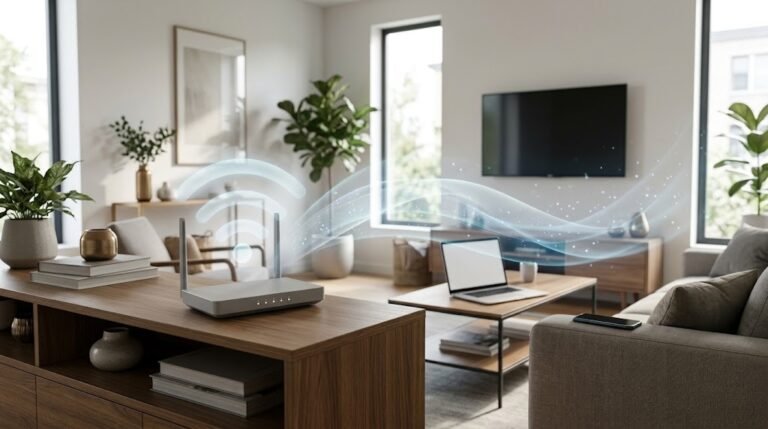
Router placement affects every wireless device in the home.
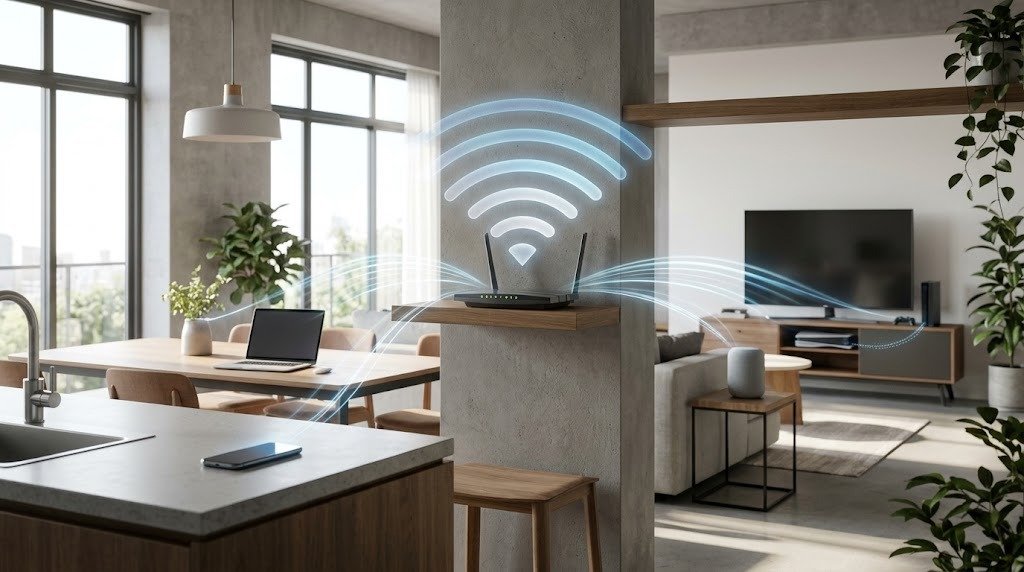
Put the router in a central location
Place the router near the center of the area where Wi-Fi is used. A router at one end of the home must transmit through more walls to reach distant rooms.
If your internet connection enters the home in an inconvenient location, consider running an Ethernet cable between the modem and a more central router or access point.
Raise the router
Place it on a shelf or table rather than on the floor. Keep it open to the room instead of hiding it behind furniture.
Avoid obstacles
Keep the router away from:
- Metal cabinets
- Large appliances
- Aquariums
- Thick concrete or brick walls
- Mirrors with metallic backing
- Televisions and entertainment cabinets
- Microwaves
- Cordless-phone bases
- Dense storage areas
Do not place the router inside a closed cabinet unless ventilation and wireless performance have been properly addressed.
Check heat and ventilation
Routers can become unstable if they overheat. Keep ventilation openings clear and avoid stacking equipment directly on top of the router.
Use only the manufacturer-approved power adapter.
Understand Router Capacity
Router capacity describes how effectively a router can handle connected devices, network traffic, security functions, and wireless communication.
Capacity depends on factors such as:
- Processor and memory
- Supported Wi-Fi generation
- Number of wireless radios
- Antenna design
- Ethernet port speeds
- Software quality
- Traffic-management features
- Number of active devices
- Connection quality
- Router placement
A router advertised as supporting a large number of devices may still struggle if many devices are simultaneously streaming, downloading, uploading, or communicating through weak Wi-Fi signals.
Signs that the router may be overloaded
Possible signs include:
- The network slows when several people are active.
- The router becomes unresponsive.
- Devices disconnect regularly.
- A restart temporarily fixes performance.
- Wired and wireless devices both slow down.
- The router struggles during large downloads.
- Video calls fail when someone else starts streaming.
- The administration page responds slowly.
- The router no longer receives software updates.
These symptoms can also be caused by the internet provider, a damaged cable, interference, or weak coverage. Test carefully before replacing the router.
Understand Bandwidth
Bandwidth is the amount of data a connection can carry within a given period. Think of it as the capacity of a pipe.
Your internet plan normally includes:
- Download capacity: Data traveling from the internet to your home
- Upload capacity: Data traveling from your home to the internet
Activities that use download capacity
These include:
- Streaming video
- Downloading games
- Installing updates
- Browsing media-heavy websites
- Receiving cloud files
Activities that use upload capacity
These include:
- Video calls
- Cloud backups
- Uploading videos
- Security cameras using cloud storage
- Sending large files
- Livestreaming
Upload capacity is often overlooked. If cameras and backups consume most of it, video calls and online gaming may become less responsive even when download speed appears acceptable.
Bandwidth is shared
If several devices are active simultaneously, they share the available internet connection. A faster plan may help when total household demand regularly exceeds the plan’s capacity, but it will not fix weak Wi-Fi coverage or an outdated router.
Wired vs. Wireless Connections
Both wired and wireless networking have useful roles.
Advantages of Wi-Fi
Wi-Fi is:
- Convenient
- Suitable for mobile devices
- Easy to expand
- Necessary for many smart home products
- Free from network cables in living spaces
Its performance can vary because of distance, obstacles, interference, and competition from other devices.
Advantages of wired networking
A wired connection generally provides:
- Greater consistency
- Lower delay
- Less interference
- Reduced Wi-Fi congestion
- Stable performance for fixed devices
The main disadvantages are cable installation and limited mobility.
Use a mixed network
A strong home network usually combines both methods:
- Wi-Fi for phones, tablets, speakers, and portable devices
- Ethernet for televisions, consoles, desktop computers, access points, and other fixed equipment
Moving even a few high-demand devices to Ethernet can leave more wireless capacity for devices that genuinely need Wi-Fi.
Use Ethernet for Fixed and Demanding Devices
Ethernet connects a device directly to the router, switch, or wired network outlet.
Good candidates include:
- Smart televisions
- Gaming consoles
- Desktop computers
- Work laptops at permanent desks
- Streaming boxes
- Network storage
- Security-camera recorders
- Mesh nodes
- Wireless access points
Add an Ethernet switch when needed
If the router does not have enough Ethernet ports, a compatible network switch can add more.
A typical setup is:
- Connect one switch port to a router LAN port.
- Connect fixed devices to the remaining switch ports.
- Keep the switch powered and ventilated.
Do not connect multiple cables between the same basic router and unmanaged switch unless the equipment instructions specifically require it. An incorrect loop can disrupt the network.
Check port speeds
The speed of a wired connection is limited by the slowest part of the path, which may include:
- Router port
- Switch
- Cable
- Wall wiring
- Device port
- Network adapter
Replacing the internet plan will not make a device exceed the capability of its Ethernet connection.
Choose Between 2.4 GHz and 5 GHz
Many routers provide both 2.4 GHz and 5 GHz Wi-Fi.
2.4 GHz
The 2.4 GHz band generally offers:
- Longer range
- Better performance through walls
- Broad support among older and smart home devices
Its disadvantages include:
- Lower potential throughput
- Fewer non-overlapping channel choices
- More competition from nearby networks
- Interference from some household and Bluetooth devices
It is often appropriate for:
- Smart speakers
- Smart appliances
- Plugs and bulbs
- Devices in distant rooms
- Low-bandwidth sensors
- Equipment that does not support 5 GHz
5 GHz
The 5 GHz band generally provides:
- Higher potential throughput
- More channel options
- Less interference from common household equipment
- Better performance for demanding devices at suitable distances
Its disadvantages include:
- Shorter useful range
- Greater signal loss through walls and floors
- Limited support among some older smart products
It is often appropriate for:
- Phones near the router
- Laptops
- Smart televisions
- Streaming devices
- Game consoles
- Video-call devices
One network name or separate names?
Many routers use a single network name and automatically guide devices toward an appropriate band. This is convenient and usually worth trying first.
Separate network names can help when:
- A smart device can connect only to 2.4 GHz.
- A device repeatedly selects an unsuitable band.
- You are diagnosing a coverage or compatibility problem.
- You want direct control over band selection.
Use the arrangement that provides the most stable results in your home.
Consider Newer Wi-Fi Bands Carefully
Some newer routers and devices can use the 6 GHz band. It can offer additional capacity and reduced competition, but both the router and device must support it.
The 6 GHz band is most useful at shorter distances with relatively few obstacles. It should be treated as an additional option, not a replacement for 2.4 GHz coverage.
Availability and allowed settings vary by region. Use your router’s correct country configuration and automatic channel options unless you have a specific reason to change them.
Reduce Network Congestion
Network congestion occurs when too many devices compete for limited internet bandwidth or Wi-Fi airtime.
Identify heavy activity
Look for:
- Game and system downloads
- Cloud backups
- Photo and video uploads
- High-resolution streaming
- Multiple video calls
- Security-camera uploads
- Large file transfers
- Automatic updates
- Guest devices
The router’s app may show real-time or recent data usage by device.
Schedule large transfers
Where possible:
- Run cloud backups overnight.
- Download games outside work or school hours.
- Stagger operating-system updates.
- Reduce camera recording quality if excessive and if lower quality still meets your needs.
- Pause nonessential uploads during important calls.
- Download streaming content in advance.
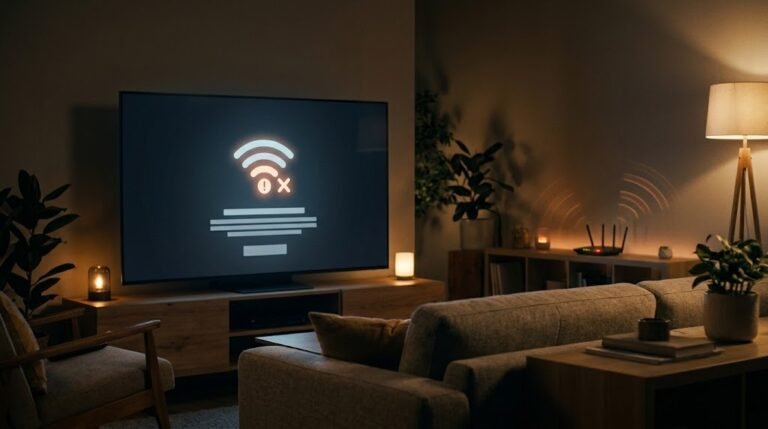
Improve weak connections
A device with a weak Wi-Fi signal may communicate less efficiently and occupy wireless airtime for longer. Moving the device, router, or access point can improve performance for the entire network.
Choose channels carefully
Automatic channel selection is usually a sensible starting point. If nearby networks create interference, a Wi-Fi analyzer can help identify less crowded channels.
For 2.4 GHz, use a suitable non-overlapping channel permitted in your country. A 20 MHz channel width is often a practical choice in congested areas.
For 5 GHz, automatic selection generally works well. Test stability after any manual change.
Use a Mesh Wi-Fi System for Larger Homes
A mesh system uses multiple coordinated Wi-Fi units to provide coverage across a larger area.
It can be useful when:
- The home has multiple floors.
- Thick walls weaken the signal.
- Several rooms have dead zones.
- One router cannot cover the property.
- Devices move between different parts of the home.
- Outdoor or garage coverage is required.
Place mesh nodes correctly
Do not place a wireless node in the center of a dead zone. It must receive a reliable connection from the main router or another node.
A practical setup process is:
- Place the main unit in an open location.
- Put the second node between the main unit and the weak area.
- Use the system’s placement tool if available.
- Test performance in the target room.
- Add another node only if necessary.
Wired backhaul
If your home has Ethernet wiring, connect compatible mesh nodes by cable. This gives the nodes a stable path for communicating with each other and preserves more wireless capacity for phones, computers, and other devices.
Mesh is not always necessary
A smaller home may need only better router placement. A wired access point may be more effective where Ethernet is already available.
Avoid adding too many mesh nodes. Excessive overlap can create unnecessary competition and make troubleshooting more difficult.
Create a Guest Network
A guest network allows visitors to access the internet without joining the main network used by personal computers and other trusted devices.
Benefits include:
- Keeping the main Wi-Fi password private
- Separating visitor devices
- Easier removal of temporary access
- Reducing exposure of shared files and personal equipment
- Managing guest usage separately
Recommended settings
When creating a guest network:
- Use modern security such as WPA3 or WPA2-AES.
- Set a strong password.
- Disable guest access to the local network if that option is available.
- Turn off guest-to-guest communication when appropriate.
- Change the password if it has been shared too widely.
- Disable the network when it is not needed.
Guest networks and smart devices
Some users place smart appliances or IoT devices on a guest network. This can improve separation, but it may also prevent them from communicating with phones, speakers, hubs, or displays.
Test all necessary functions before moving smart home devices permanently.
Keep Router Firmware Updated
Router firmware is the software that operates the router. Updates may improve:
- Security
- Stability
- Device compatibility
- Wi-Fi performance
- Traffic management
- Mesh operation
Check for updates
- Open the router’s official app or management page.
- Find Firmware, Software Update, System, or Administration.
- Check for updates.
- Install updates only from the manufacturer or internet provider.
- Keep the router powered on during installation.
- Enable automatic updates if available.
Also update mesh nodes, access points, switches with management features, smart devices, and network adapters.
Do not install unofficial router software unless you understand the risks and know that your exact hardware is supported.
Use Device Prioritization or QoS
Quality of Service, commonly called QoS, is a router feature that manages how traffic is handled when the network is busy.
It may be labeled:
- QoS
- Device Priority
- Traffic Prioritization
- Media Priority
- Gaming Mode
- Adaptive QoS
- Smart Queue Management
What QoS can do
QoS can prioritize traffic for:
- Video calls
- Online gaming
- Work computers
- Streaming
- Voice calls
For example, the router might keep a work video call responsive while a console downloads an update.
What QoS cannot do
QoS does not:
- Increase the speed of your internet plan
- Fix weak Wi-Fi coverage
- Repair a provider outage
- Make an outdated router faster
- Create more bandwidth
- Guarantee that every application will perform perfectly
It manages limited capacity rather than creating additional capacity.
Configure it carefully
Start with the router’s automatic or adaptive setting. If manual rules are available, prioritize activities that are sensitive to delay rather than giving permanent maximum priority to every high-usage device.
Avoid prioritizing too many devices. If everything is marked as important, prioritization becomes ineffective.
Some QoS systems require accurate download and upload values. Enter realistic figures based on repeated wired tests rather than the highest advertised plan speed.
Separate Coverage Problems From Internet-Speed Problems
Before upgrading anything, identify where the slowdown occurs.
Run a wired baseline test
- Connect a computer directly to the router using Ethernet.
- Pause major downloads and backups.
- Run several speed tests.
- Record download speed, upload speed, and latency.
Test Wi-Fi near the router
Repeat the test over Wi-Fi while standing near the router.
If wired performance is good but nearby Wi-Fi is poor, the router’s wireless configuration or capabilities may be the problem.
Test problem rooms
Use the same device to test in each room. Record:
- Location
- Wi-Fi band
- Signal strength
- Download result
- Upload result
- Latency
- Whether the connection drops
If speed falls mainly in distant rooms, improve coverage. If wired and wireless tests are slow everywhere, investigate the internet service, modem, router capacity, or heavy traffic.
When Upgrading Equipment Makes Sense
Do not buy new equipment until you have checked placement, cabling, firmware, background traffic, and the incoming internet connection.
Consider replacing the router when:
- It no longer receives security updates.
- It frequently freezes or restarts.
- It cannot support modern wireless security.
- It slows down with several active devices.
- Its wired ports limit your connection.
- Coverage remains poor despite good placement.
- It lacks useful traffic-management features.
- It cannot work with compatible access points or mesh units.
- It is unreliable even after a proper reset and update.
Consider upgrading the modem when:
- It is not approved for your current internet plan.
- It disconnects regularly.
- The internet provider identifies it as outdated.
- A direct wired test shows it is limiting performance.
- It no longer receives necessary updates.
If the provider owns the modem or router, contact the provider before replacing it.
Consider adding a switch when:
- You need more Ethernet ports.
- Several fixed devices are near one location.
- The router has insufficient LAN connections.
Consider adding an access point when:
- Ethernet wiring reaches an area with weak Wi-Fi.
- One part of the home needs better coverage.
- You want a stable alternative to a wireless extender.
Consider mesh Wi-Fi when:
- Several areas have weak coverage.
- Running Ethernet is impractical.
- Devices need to move smoothly across the home.
- One router cannot cover multiple floors.
Consider a faster internet plan when:
- Wired tests show that you regularly reach the plan’s limit.
- Several simultaneous streams exceed available capacity.
- Upload-heavy cameras, backups, or calls saturate the connection.
- The current plan cannot support normal household activity.
A faster plan will not correct dead zones or poor router placement.
Build a Practical Home Network Layout
A balanced setup might look like this:
Wired connections
Use Ethernet for:
- Main television
- Game console
- Desktop computer
- Workstation
- Network storage
- Security-camera recorder
- Mesh nodes or access points
5 GHz Wi-Fi
Use it for:
- Phones near access points
- Laptops
- Tablets
- Wireless streaming devices
- Televisions without Ethernet
- Consoles without a practical wired connection
2.4 GHz Wi-Fi
Use it for:
- Smart speakers
- Smart plugs
- Bulbs
- Appliances
- Distant low-bandwidth devices
- Devices that do not support 5 GHz
Guest network
Use it for:
- Visitors
- Temporary devices
- Selected IoT equipment when isolation does not prevent required functions
The exact arrangement will depend on your home, equipment, and device compatibility.
Common Home Network Mistakes
Avoid these frequent mistakes:
- Hiding the router inside a cabinet
- Placing it at one end of the home
- Connecting every fixed device through Wi-Fi
- Assuming every slowdown requires a faster internet plan
- Using 2.4 GHz for all high-demand devices
- Forcing 5 GHz on devices far from the router
- Placing a mesh node inside a dead zone
- Adding too many extenders
- Ignoring upload usage from cameras and backups
- Leaving old devices connected indefinitely
- Skipping router firmware updates
- Giving every device maximum QoS priority
- Using outdated Wi-Fi security
- Changing several settings at once without testing
- Buying equipment based only on an advertised maximum speed
Make one change at a time and compare results. This helps identify what actually improves the network.
Practical Home Network Checklist
Diagnose the network
- Incomplete to-do itemList all connected devices.
- Incomplete to-do itemIdentify devices that stream, download, or upload heavily.
- Incomplete to-do itemCheck whether slowdowns affect one device or the entire home.
- Incomplete to-do itemRun a wired speed test.
- Incomplete to-do itemTest Wi-Fi near the router.
- Incomplete to-do itemTest Wi-Fi in problem rooms.
- Incomplete to-do itemCheck for large backups, downloads, and updates.
- Incomplete to-do itemReview upload usage from security cameras.
Improve Wi-Fi coverage
- Incomplete to-do itemPlace the router in a central location.
- Incomplete to-do itemRaise it off the floor.
- Incomplete to-do itemKeep it in the open.
- Incomplete to-do itemMove it away from metal objects and appliances.
- Incomplete to-do itemCheck ventilation.
- Incomplete to-do itemUse 2.4 GHz for range and compatible smart devices.
- Incomplete to-do itemUse 5 GHz for nearby high-demand devices.
- Incomplete to-do itemReview channel selection if interference is suspected.
- Incomplete to-do itemPosition mesh nodes where they still receive a strong signal.
- Incomplete to-do itemUse wired backhaul when available.
Reduce congestion
- Incomplete to-do itemConnect fixed devices by Ethernet.
- Incomplete to-do itemSchedule large backups and downloads.
- Incomplete to-do itemPause nonessential transfers during important calls.
- Incomplete to-do itemEnable sensible QoS or device prioritization.
- Incomplete to-do itemAvoid giving every device maximum priority.
- Incomplete to-do itemRemove unused devices from the network.
- Incomplete to-do itemCreate a separate guest network.
- Incomplete to-do itemCheck whether weak devices are consuming excessive airtime.
Maintain security and reliability
- Incomplete to-do itemInstall router firmware updates.
- Incomplete to-do itemEnable automatic updates if available.
- Incomplete to-do itemUse WPA3 or WPA2-AES.
- Incomplete to-do itemSet a strong Wi-Fi password.
- Incomplete to-do itemChange the default router administrator password.
- Incomplete to-do itemReview the connected-device list.
- Incomplete to-do itemBlock confirmed unauthorized devices.
- Incomplete to-do itemKeep mesh nodes and access points updated.
Decide whether to upgrade
- Incomplete to-do itemConfirm that the existing router is still supported.
- Incomplete to-do itemCheck whether its Ethernet ports meet your needs.
- Incomplete to-do itemDetermine whether the problem is coverage, capacity, or internet speed.
- Incomplete to-do itemConsider a switch for additional wired ports.
- Incomplete to-do itemConsider an access point where Ethernet is available.
- Incomplete to-do itemConsider mesh Wi-Fi for multiple dead zones.
- Incomplete to-do itemUpgrade the internet plan only if repeated wired tests show insufficient capacity.
- Incomplete to-do itemReplace equipment that is unsupported, unreliable, or genuinely limiting performance.
Conclusion
Improving a home network for multiple devices begins with understanding how those devices use the connection. Phones and smart appliances may create light background traffic, while televisions, consoles, computers, and security cameras can place much greater demands on bandwidth and Wi-Fi airtime.
Start by placing the router correctly, updating its firmware, moving fixed devices to Ethernet, and assigning devices to suitable Wi-Fi bands. Use QoS to protect time-sensitive activities when the network is busy, and add a properly positioned access point or mesh system when coverage is the real problem.
Upgrade equipment only after identifying the bottleneck. A balanced combination of good router placement, wired connections, reliable Wi-Fi coverage, and sensible traffic management will usually provide better results than simply buying the most expensive router available.