How to Connect Your Phone to a Smart TV
Connecting a smartphone to a smart TV lets you display photos, play videos, stream music, give presentations, or show your entire phone screen on a larger display. The best connection method depends on your phone, television, apps, home network, and the type of content you want to show.
You can usually connect through wireless screen mirroring, in-app casting, a compatible streaming device, or an HDMI adapter. Bluetooth and USB may also be useful, but they have important limitations.
Exact menu names and available features vary by phone manufacturer, operating-system version, TV model, and region. Use the generic steps below as a guide, then consult the official instructions for your phone and television when necessary.
Understand the Main Connection Methods
Before changing settings, decide what you want to do.
Screen mirroring
Screen mirroring displays most or all of your phone’s screen on the television. Actions performed on the phone appear on the TV.
It is useful for:
- Showing photos
- Giving a presentation
- Demonstrating an app
- Sharing a website
- Displaying content that does not offer a casting option
Notifications and other private information may also appear, so privacy settings are important.
Casting
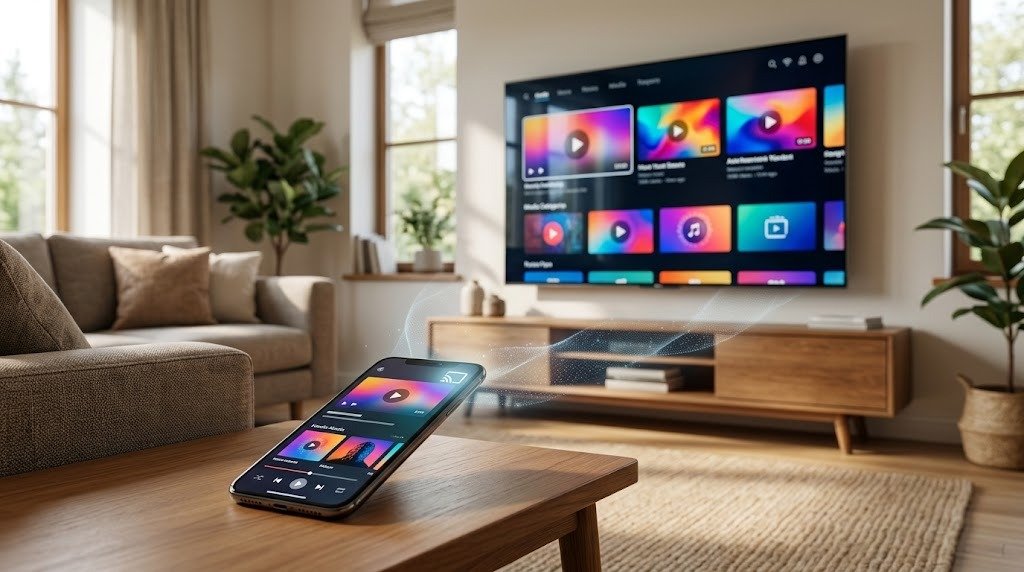
Casting sends a video, song, or other supported media from an app to the television or a compatible streaming receiver.
The phone normally acts as a remote control while the TV or receiver plays the content directly.
Casting is often better than full screen mirroring for streaming because it can provide:
- More stable playback
- Better video quality
- Less phone battery use
- Fewer interruptions from notifications
- The ability to use the phone for other tasks
Wired video connection
A compatible HDMI adapter can send video and audio from the phone to the TV through a cable. This is useful when Wi-Fi is unavailable, unreliable, or restricted.
However, not every phone can output video through its charging port.
Direct app use
Sometimes you do not need to connect the phone at all. If the streaming service has an official TV app, you can install it on the television and sign in directly.
Check Compatibility Before Starting
A smart TV and smartphone are not automatically compatible with every connection method.
Check whether the TV supports:
- Wireless screen mirroring
- Your phone’s casting protocol
- The required receiving mode
- A compatible streaming device
- HDMI input
- Media playback through USB
- A companion remote-control app
Also check whether the phone supports:
- Wireless display output
- The casting system used by the TV
- Video output through its USB-C or other connector
- A compatible HDMI adapter
- The app you want to use
Do not assume that a phone with a USB-C port supports video output. USB-C describes the connector’s shape, but the features available through it depend on the phone.
Method 1: Wireless Screen Mirroring
Wireless screen mirroring duplicates the phone’s display on the television.
General setup steps
- Turn on the TV.
- Open its Settings, Inputs, Connections, or Network menu.
- Enable a feature named something like:
- Screen Mirroring
- Wireless Display
- Screen Share
- Device Connect
- Mobile Device Connection
- Leave the TV on the connection screen if required.
- Unlock the phone.
- Open the phone’s quick settings or display settings.
- Select the screen-sharing or mirroring option.
- Choose the TV from the available-device list.
- Accept the connection request on the TV if prompted.
- Wait for the phone’s screen to appear.
Because manufacturers use different terminology, the name on your phone may not match the name on your television.
What to expect
When mirroring:
- The TV normally follows the phone’s screen orientation.
- Anything visible on the phone may appear on the TV.
- Audio may also play through the TV.
- The phone usually needs to remain active.
- Performance depends on the network and device compatibility.
- Protected streaming content may display a blank screen if mirroring is not permitted.
Stop mirroring
Open the phone’s screen-sharing controls and select Disconnect, Stop Mirroring, or a similar option.
You may also be able to end the session from the TV’s device list.
Method 2: Cast From a Supported App
Casting is usually the preferred method for watching video or listening to music from a supported streaming app.
General casting steps
- Connect the phone and television or streaming receiver to the same home network.
- Turn on the TV.
- Open a compatible streaming app on the phone.
- Start or select the content you want to play.
- Look for a casting or playback-device icon.
- Tap the icon.
- Select the TV or receiver.
- Wait for playback to begin.
- Use the phone to pause, seek, change volume, or choose another item.
The icon’s appearance and location vary between apps.
Why casting may work better than mirroring
With casting, the television or receiver may retrieve the media directly. The phone sends playback instructions rather than continuously transmitting its entire screen.
As a result:
- You may be able to lock the phone.
- Notifications are less likely to appear on the TV.
- Playback may continue while you use another app.
- Video may be smoother.
- The TV may receive the content at a quality better suited to its display.
Casting limitations
Casting may not work when:
- The app does not support it.
- The phone and TV use incompatible protocols.
- The devices are on different networks.
- Guest-network isolation blocks communication.
- A VPN interferes with local-device discovery.
- The app limits playback on external displays.
- The television or receiver needs an update.
Connecting an Android Phone to a Smart TV
Android connection methods vary significantly by phone manufacturer and software version.
Possible options include:
- Built-in screen mirroring
- A system casting feature
- Casting from individual apps
- A TV manufacturer’s companion app
- A compatible streaming receiver
- USB-C video output with an HDMI adapter
Use the phone’s built-in mirroring feature
- Turn on the TV’s screen-mirroring or wireless-display mode.
- Open the Android phone’s quick settings panel.
- Look for a control named Cast, Screen Share, Screen Mirroring, Wireless Display, or similar.
- Tap it and allow device discovery if requested.
- Select the television.
- Accept the request on the TV.
- Wait for the connection.
If the control is not in quick settings:
- Open the phone’s Settings.
- Search for terms such as “cast,” “mirror,” “wireless display,” or “screen share.”
- Open the matching result.
- Select the TV.
The phone and TV must support compatible mirroring technology. A device appearing in a streaming app does not necessarily mean it supports full-screen mirroring.
Cast from an Android app
- Connect the phone and TV to the same network.
- Open the streaming app.
- Select the casting icon.
- Choose the television or compatible receiver.
- Start playback.
If the TV does not appear, confirm that the app is supported on both devices and that local-network discovery is allowed.
Use a manufacturer companion app
Some television manufacturers provide an app that can:
- Find the TV
- Act as a remote
- Share photos or videos
- Open installed TV apps
- Enter text
- Control volume
Install only the official app from your phone’s app store. Confirm that the app developer matches the television manufacturer.
A remote-control app may not support full screen mirroring.
Connecting an iPhone to a Smart TV
An iPhone can connect wirelessly to a television or receiver that supports Apple’s wireless streaming and mirroring technology. It may also connect through a compatible HDMI adapter.
Mirror the iPhone screen wirelessly
- Connect the iPhone and TV to the same Wi-Fi network.
- Enable the TV’s compatible wireless receiving feature.
- Open Control Center on the iPhone.
- Select Screen Mirroring.
- Choose the TV or receiver.
- Enter the code displayed on the television if requested.
- Wait for the iPhone screen to appear.
To stop:
- Open Control Center.
- Select the screen-mirroring control.
- Choose Stop Mirroring.
The exact location of Control Center depends on the iPhone model and software version.
Stream from an iPhone app
Some apps include a playback destination or wireless streaming icon.
- Open the app.
- Select the video, photo, or audio.
- Tap the playback or sharing control.
- Choose the supported television or receiver.
- Start playback.
Some apps use their own casting system rather than full iPhone screen mirroring. Follow the controls shown inside the app.
If the TV does not support the iPhone’s wireless system
Possible alternatives include:
- A compatible streaming receiver
- The official TV app for the content service
- A supported HDMI adapter
- A manufacturer companion app for photos or controls
Confirm compatibility before purchasing an additional receiver or adapter.
Do the Phone and TV Need to Be on the Same Wi-Fi?
In most cases, yes. The phone and TV should be connected to the same home network so they can discover and communicate with one another.
Check the network carefully
Make sure both devices use the same network name. Common problems include:
- The phone is using mobile data.
- The phone is on the main network while the TV is on a guest network.
- The devices are connected to separate routers.
- A guest network blocks devices from seeing one another.
- A VPN changes local-network behavior.
- The router isolates wireless clients.
- One device is connected to a public network requiring a login page.
The phone can often be on 5 GHz while the TV is on 2.4 GHz, provided both bands belong to the same local network and the router allows communication between them.
Direct wireless connections
Some devices support a direct connection without using the home router. This may be called a direct wireless display, peer-to-peer connection, or a similar term.
Compatibility varies, and internet access may be limited while the direct connection is active. Follow the instructions for the exact phone and TV.
Bluetooth Limitations
Bluetooth is useful for audio accessories and basic remote functions, but it is usually not a full video-sharing method.
Bluetooth may support:
- Playing phone audio through the TV
- Connecting headphones to a TV
- Using the phone as a basic remote
- Pairing a keyboard or controller
- Helping with the initial setup process
Bluetooth normally does not support:
- Full screen mirroring
- High-quality video transmission to the TV
- Casting a streaming service
- Displaying phone apps on the television
A TV appearing in the phone’s Bluetooth list does not mean it can receive the phone’s screen.
General Bluetooth audio steps
- Open the TV’s Bluetooth or audio-device settings.
- Put the television in pairing mode.
- Open the phone’s Bluetooth settings.
- Select the TV.
- Confirm any matching code.
- Choose the TV as the audio output if necessary.
Bluetooth audio may introduce delay. This can cause speech to appear out of sync with video.
Method 3: Connect With an HDMI Adapter
An HDMI adapter can provide a reliable wired connection without depending on Wi-Fi.
The basic arrangement is:
Phone → compatible video adapter → HDMI cable → television
Check phone compatibility first
Before buying an adapter, verify that the exact phone model supports video output through its connector.
Not every USB-C phone supports HDMI video. The connector alone does not confirm compatibility.
For phones using another connector type, use an adapter officially supported for video output from that device.
General connection steps
- Turn off or pause sensitive content.
- Connect the compatible video adapter to the phone.
- Connect an HDMI cable to the adapter.
- Connect the other end to an available HDMI input on the TV.
- If the adapter accepts external power, connect the recommended power source.
- Turn on the television.
- Use the TV remote to select the matching HDMI input.
- Unlock the phone.
- Wait for the image to appear.
- Rotate the phone or open the intended app.
Some phones mirror their screens automatically. Others provide a desktop-style interface or require a setting to enable external display output.
Common wired-connection limitations
A wired adapter may not work because:
- The phone does not support video output.
- The adapter is not compatible with the phone.
- The HDMI cable is damaged.
- The wrong TV input is selected.
- The adapter requires external power.
- The phone case prevents a complete connection.
- Protected content does not permit playback through the adapter.
- The adapter does not support the requested resolution or refresh rate.
Use a properly certified adapter intended for the phone. Very inexpensive or unverified adapters may provide unreliable video, audio, or content-protection support.
USB Connections and Their Limitations
Connecting a phone to the TV’s USB port usually does not mirror the phone’s screen.
What a USB connection may support
Depending on the TV and phone, USB may allow:
- Charging the phone
- Viewing stored photos
- Playing compatible video files
- Playing music files
- Accessing the phone as media storage
- Installing official TV software from a USB drive, unrelated to phone display
Why USB may not show the screen
A television’s USB port is often designed for media files or power, not live video input. A USB charging cable does not automatically carry a display signal the television can use.
Even when the TV can browse the phone’s files:
- Not every file format will play.
- Protected app downloads may be inaccessible.
- Cloud-only files may not appear.
- The phone may need to be unlocked.
- You may need to choose a file-transfer or photo-transfer mode.
- Some phones restrict storage access.
General USB media steps
- Connect the phone to the TV using a compatible data cable.
- Unlock the phone.
- If prompted, choose File Transfer, Photo Transfer, or a similar mode.
- Open the TV’s Source, Media, or USB menu.
- Browse supported photos, videos, or music.
- Select a file to play.
Do not disconnect the phone while a file is being read or transferred.
Use Streaming Apps Directly on the TV
If your goal is to watch content from a major streaming service, the simplest option may be the service’s official TV app.
General setup
- Connect the television to the internet.
- Open its app store or application menu.
- Search for the official streaming app.
- Install or open it.
- Sign in using the on-screen method.
- Select content with the TV remote.
Some services provide a code or QR sign-in process so you do not have to type a full password with the remote.
Advantages of the TV app
- The phone is not required during playback.
- Notifications remain private.
- The TV receives a stream designed for its hardware.
- Battery use on the phone is reduced.
- Playback may be more stable than mirroring.
Sign out on shared televisions
If you sign in on a hotel, rental, workplace, or another person’s TV:
- Sign out of the streaming app when finished.
- Remove the TV from your account’s device list if necessary.
- Do not save payment or account information.
- Use a temporary guest mode if the service offers one.
Troubleshooting Connection Problems
If the phone cannot find or connect to the TV, work through these steps in order.
Confirm Compatibility
Check the official documentation for both devices.
Verify:
- The phone supports the connection method.
- The TV supports receiving that method.
- Both devices use compatible protocols.
- The required feature is enabled.
- The app allows playback on an external display.
A TV that supports casting from certain apps may not support full screen mirroring.
Check the Network
- Confirm that the phone and TV are connected to Wi-Fi.
- Verify that both use the same local network.
- Check whether other devices have internet access.
- Disconnect the phone from mobile data temporarily if it causes confusion.
- Disable a VPN temporarily for testing.
- Avoid guest networks that isolate devices.
- Move the phone and TV closer to the router if the signal is weak.
Do not disable Wi-Fi security as a troubleshooting method.
Restart the Phone and TV
- Disconnect any current casting or mirroring session.
- Restart the phone.
- Restart the TV through its system menu, if available.
- If necessary, turn the TV off, unplug it for about a minute, and reconnect it.
- Try the connection again.
Do not unplug the TV while it is installing an update.
Restart the Router
- Save any work that requires internet access.
- Unplug the router.
- If the modem is separate, unplug it as well.
- Wait approximately one minute.
- Reconnect the modem first.
- Wait for its connection to stabilize.
- Reconnect the router.
- Allow Wi-Fi to return.
- Reconnect the phone and TV.
- Try again.
Do not press the router’s factory-reset button.
Update the Phone, TV, and Apps
Install available updates for:
- Phone operating system
- Television software
- Streaming app
- TV companion app
- Streaming receiver
- Router firmware
Compatibility problems are sometimes corrected through software updates.
Review Permissions
A phone app may need permission to discover devices on the local network. Depending on the phone, it may also request nearby-device, Bluetooth, or location permission for discovery.
Open the phone’s privacy or app settings and confirm that the required permissions are allowed. Grant only permissions needed for the feature.
Remove Old Pairings
If the connection worked before but no longer does:
- Remove the TV from the phone’s saved-device or mirroring list.
- Remove the phone from the TV’s connected-device list.
- Restart both devices.
- Pair them again.
- Enter any new code shown on the TV.
Test Another App or Media File
If one app fails while another works, the problem may be specific to the app, account, content license, or service.
Try:
- A locally stored photo
- A personal video
- Another supported streaming app
- The TV’s official app for the service
A black screen during protected video does not necessarily mean the connection is broken.
Fix Audio Problems
No sound from the TV
Check the following:
- Raise the TV volume.
- Make sure the TV is not muted.
- Confirm that the correct audio output is selected.
- Disconnect Bluetooth headphones or speakers from the phone.
- Check the phone’s media volume.
- Stop and restart the connection.
- Try another app.
- Restart both devices.
Some apps maintain their own volume or mute setting.
Audio still plays through the phone
Open the phone’s audio-output or playback-device menu and select the TV or receiver.
If using HDMI, confirm that:
- The adapter supports audio.
- The HDMI input is selected.
- The TV’s audio output is configured correctly.
- The app permits audio over an external display.
Audio and video are out of sync
Try:
- Using in-app casting instead of screen mirroring
- Disconnecting Bluetooth audio devices
- Moving closer to the router
- Connecting the TV by Ethernet
- Restarting the app
- Lowering the video quality
- Using a compatible HDMI adapter
- Checking the TV for an audio-delay or lip-sync setting
Bluetooth audio and wireless mirroring can each introduce delay.
Reduce Screen Lag
Some delay is normal during screen mirroring because the phone must encode and transmit its display while the TV receives and displays it.
Lag may be noticeable during:
- Gaming
- Fast scrolling
- Presentations with animation
- Video editing
- Real-time camera previews
- High-resolution playback
Ways to reduce lag
- Use casting instead of mirroring for supported media.
- Move the phone and TV closer to the router.
- Use a less congested Wi-Fi band.
- Connect the TV to Ethernet.
- Pause large downloads and cloud backups.
- Disconnect unused mirroring devices.
- Restart the router.
- Reduce the phone’s output resolution if that option exists.
- Use a compatible wired HDMI connection.
Screen mirroring may not be suitable for games that require immediate control response.
Understand Resolution Differences
The phone and TV may have different screen shapes, resolutions, and orientations.
As a result, you may see:
- Black bars around the image
- Cropped content
- A smaller image
- Lower-than-expected resolution
- Vertical phone content centered on a horizontal TV
- Reduced video quality
- Interface elements that appear unusually large
Why the image may not fill the TV
Phones often have a taller or wider aspect ratio than televisions. The TV may preserve the phone image’s shape rather than stretching or cutting it.
Rotating the phone into landscape mode may help when supported.
Why the picture may look softer
Mirroring quality may be limited by:
- Phone output capability
- TV receiving capability
- Network speed
- Wireless interference
- Adapter capability
- App restrictions
- Video compression
- Content-protection requirements
A high-resolution phone and high-resolution TV do not guarantee that the mirrored connection will use the maximum resolution.
Check picture-size settings carefully
The TV may offer picture modes such as Fit to Screen, Original, or Aspect Ratio. Use a mode that preserves the complete image.
Avoid excessive zoom, which can cut off subtitles, controls, or other content.
Privacy Considerations
Connecting a phone to a television can expose more than the video you intended to share.
Protect notifications
Before mirroring:
- Enable Do Not Disturb or Focus mode.
- Disable notification previews.
- Close private apps.
- Remove sensitive widgets from view.
- Avoid opening email, banking, health, or messaging apps.
- Check whether incoming calls will appear on screen.
Casting from a supported app is usually more private than mirroring the entire phone.
Be careful with photos
Photo apps may show:
- Recent images
- Hidden previews
- Location information
- Shared albums
- Screenshots
- Suggested memories
Create a separate album containing only the photos you want to show.
Review connected devices
Remove televisions or receivers you no longer use from:
- The phone’s saved-device list
- Streaming apps
- Smart home platforms
- The TV’s authorized-device list
- Your account’s signed-in device list
Use caution on shared networks
Avoid mirroring sensitive content on public, hotel, workplace, or shared apartment networks. Other compatible devices may appear in the selection list, and you could accidentally choose the wrong display.
Verify the TV name before connecting. Use any displayed pairing code rather than accepting an unexpected connection request.
Sign out after use
When using another person’s TV:
- Stop casting or mirroring.
- Sign out of any TV apps.
- Remove the television from the account if needed.
- Delete saved pairing information.
- Clear personal photos or downloaded files.
- Do not leave the phone authorized for future automatic connections.
Troubleshooting Checklist
Compatibility
- Incomplete to-do itemConfirm that the phone supports the chosen connection method.
- Incomplete to-do itemConfirm that the TV can receive that method.
- Incomplete to-do itemCheck whether a streaming receiver or adapter is required.
- Incomplete to-do itemVerify that the app permits casting or external playback.
- Incomplete to-do itemCheck whether the phone supports video output through its port.
Wireless connection
- Incomplete to-do itemConnect the phone and TV to the same home network.
- Incomplete to-do itemAvoid isolated guest networks.
- Incomplete to-do itemCheck Wi-Fi strength near the TV.
- Incomplete to-do itemEnable screen mirroring or receiving mode on the TV.
- Incomplete to-do itemAllow local-network or nearby-device permissions.
- Incomplete to-do itemDisable a VPN temporarily for testing.
- Incomplete to-do itemRestart the phone and TV.
- Incomplete to-do itemRestart the router if necessary.
- Incomplete to-do itemUpdate the phone, TV, apps, receiver, and router.
- Incomplete to-do itemRemove old pairings and reconnect.
Wired connection
- Incomplete to-do itemUse an adapter compatible with the exact phone.
- Incomplete to-do itemConfirm that the phone supports video output.
- Incomplete to-do itemConnect external power to the adapter if required.
- Incomplete to-do itemSelect the correct HDMI input.
- Incomplete to-do itemTest another HDMI cable or input.
- Incomplete to-do itemRemove a phone case that prevents full connector insertion.
- Incomplete to-do itemCheck whether the content allows external-display playback.
Picture and sound
- Incomplete to-do itemCheck TV and phone volume.
- Incomplete to-do itemSelect the TV as the audio output.
- Incomplete to-do itemDisconnect unnecessary Bluetooth audio devices.
- Incomplete to-do itemRotate the phone into landscape mode.
- Incomplete to-do itemUse a fit-to-screen picture mode.
- Incomplete to-do itemTry casting instead of mirroring.
- Incomplete to-do itemReduce network congestion.
- Incomplete to-do itemTest a different app or personal media file.
Privacy
- Incomplete to-do itemEnable Do Not Disturb before mirroring.
- Incomplete to-do itemHide notification previews.
- Incomplete to-do itemClose private apps.
- Incomplete to-do itemConfirm the correct TV before connecting.
- Incomplete to-do itemStop the session when finished.
- Incomplete to-do itemSign out of apps on shared televisions.
- Incomplete to-do itemRemove old or unfamiliar authorized devices.
Frequently Asked Questions
1. Why can’t my phone find my smart TV?
The devices may be on different networks, the TV’s receiving feature may be disabled, or the phone and TV may use incompatible systems. Confirm compatibility, connect both devices to the same local network, enable the TV’s connection mode, and restart both devices.
2. Can I connect my phone to a TV without Wi-Fi?
Yes, if the phone supports video output through a compatible HDMI adapter. Some devices also support direct wireless connections that do not require a home router, although compatibility and internet access vary. A standard USB charging cable usually cannot mirror the screen.
3. Can Bluetooth send video from my phone to the TV?
Generally, no. Bluetooth may handle audio, pairing, or remote controls, but it is not normally used for full-quality video or screen mirroring. Use casting, wireless screen mirroring, a TV app, or HDMI instead.
4. Why do I get sound but no picture?
The app may restrict mirrored or external-display video, or there may be a compatibility problem involving the adapter, cable, receiver, or content protection. Test a personal photo or video, try in-app casting, and confirm that all equipment supports the intended connection.
5. Why is the phone screen delayed on the TV?
Wireless mirroring requires the phone to process and transmit the screen, which creates some delay. Weak Wi-Fi and network congestion can make it worse. Use in-app casting, improve Wi-Fi coverage, connect the TV by Ethernet, pause large transfers, or use a compatible HDMI adapter.
6. Why doesn’t the image fill the entire television screen?
Phones and televisions often use different aspect ratios. The TV may add black bars to preserve the full image. Rotate the phone into landscape mode and try the TV’s fit-to-screen option, but avoid zoom settings that crop the image.
Conclusion
There are several ways to connect a phone to a smart TV, but the right method depends on what you want to display.
Use in-app casting for supported video and music services, screen mirroring when you need to show the full phone interface, and a compatible HDMI adapter when you want a stable connection without relying on Wi-Fi. Bluetooth is mainly useful for audio and controls, while USB is generally limited to charging or playing stored media files.
Because exact menus and compatibility differ between phone and TV models, begin by checking the official specifications for both devices. Then verify the network, enable the correct receiving feature, and protect your privacy before sharing the screen.