Smart Plugs: What They Can Actually Do
A smart plug is one of the simplest ways to add basic automation to an ordinary appliance. It can turn a lamp on according to a schedule, switch off office equipment at the end of the day, or let you check from another room whether a connected device still has power.
However, a smart plug does not make every appliance fully “smart.” It usually controls only the electricity flowing to the device. Whether that is useful—or safe—depends on the appliance, the smart plug’s electrical rating, and how the combination will be used.
This beginner-friendly guide explains what smart plugs can do, which devices work well with them, and how to use them safely.
What Is a Smart Plug?
A smart plug is an adapter that fits between a wall outlet and an electrical device.
The basic arrangement is:
Wall outlet → smart plug → appliance
Inside the smart plug is an electronically controlled switch. You can operate that switch using an app, schedule, voice command, timer, or compatible smart home automation.
When the smart plug is on, electricity can reach the connected device. When it is off, the plug stops supplying power.
What a smart plug does not do
A standard smart plug does not understand or control every function of the appliance connected to it.
For example, it usually cannot:
- Change a television channel
- Adjust a fan’s speed
- Select a coffee maker’s brewing mode
- Change a lamp’s brightness
- Start an appliance that requires an electronic button press
- Control settings inside a computer
- Make an incompatible appliance safe for remote operation
It generally controls only whether electrical power is available.
Some specialized plugs support dimming, energy monitoring, or other functions, but those features must be explicitly supported. Never use a standard on/off smart plug as a dimmer.
How Smart Plugs Connect
Smart plugs use a wireless connection to receive commands.
Wi-Fi Smart Plugs
Wi-Fi plugs connect directly to your home router. They are common because they generally do not require a separate hub.
They may support:
- App control
- Remote access
- Schedules
- Timers
- Voice assistants
- Smart home routines
- Energy monitoring on selected models
Many Wi-Fi smart plugs use the 2.4 GHz band. Check the product specifications before buying.
Bluetooth Smart Plugs
Bluetooth plugs communicate directly with a nearby phone or tablet. They may have a simpler setup but a shorter control range.
Remote control outside the home may require a compatible hub or another always-connected device.
Hub-Based Smart Plugs
Some smart plugs connect through a separate smart home hub or bridge. The hub communicates with the plug and links it to your wider home network.
Possible benefits include:
- Reliable communication
- Local automation
- Reduced dependence on direct Wi-Fi connections
- Easier management of many compatible devices
The trade-off is the need to purchase, power, and maintain another piece of equipment.
Matter and Thread Support
Some newer smart plugs support Matter, a compatibility standard designed to help smart devices work with multiple major smart home ecosystems.
Certain Matter devices communicate over Thread, a low-power networking technology. These may require a compatible Thread border router, which can be built into some smart speakers, displays, or hubs.
Before buying, verify:
- Which smart home platforms are supported
- Whether a hub is required
- Whether a Thread border router is required
- Which features are available through your preferred platform
- Whether the manufacturer’s app is still needed for updates
A compatibility logo does not always mean every advanced feature will be available in every app.
Turning Devices On and Off Remotely
The most basic smart-plug function is remote power control.
Using an app, you can usually:
- Turn the outlet on
- Turn the outlet off
- Check its current power state
- Control it while connected to your home network
- Control it from outside the home if remote access is supported
Practical uses
You might:
- Turn off a bedroom lamp from downstairs.
- Switch on a living-room lamp before entering the room.
- Check whether decorative lights were left on.
- Turn off suitable office equipment after work.
- Control an outdoor-rated lighting display from inside.
An important limitation
The connected device must be able to operate when electrical power is restored.
Devices with a physical on/off switch often work well. If the physical switch is left in the on position, the smart plug can control the power.
Devices with an electronic or touch-sensitive power button may remain off after the smart plug restores electricity. Test the appliance manually:
- Turn the appliance on.
- Unplug it from the wall.
- Wait briefly.
- Plug it back in.
- See whether it resumes operation safely.
If it remains off, a smart plug will probably not be able to start it remotely. Do not repeat this test with equipment that the manufacturer says should not be disconnected during operation.
Using Schedules
A schedule turns the smart plug on or off at specified times.
For example:
- Turn on a bedroom lamp at 7:00 a.m.
- Turn off a living-room lamp at midnight.
- Run suitable decorative lighting in the evening.
- Turn off selected office accessories after working hours.
- Operate a suitable fan during a planned period.
Fixed schedules
A fixed schedule uses exact times. It is useful when your routine is predictable.
Example:
- On at 6:30 p.m.
- Off at 10:30 p.m.
Sunrise and sunset schedules
Some smart plug apps or smart home platforms can trigger schedules relative to local sunrise or sunset.
For example:
- Turn on an entrance lamp 15 minutes before sunset.
- Turn off decorative lights at sunrise.
Make sure the app has the correct location and time zone. Review seasonal schedules periodically.
Check where the schedule runs
Schedules may be stored:
- Inside the plug
- In a hub
- In the manufacturer’s cloud service
- In a smart home platform
This affects whether the schedule continues during an internet outage. Check the product documentation if offline operation is important.
Using Timers
A timer changes the smart plug’s state after a selected period.
Examples include:
- Turn off a bedside lamp after 30 minutes.
- Turn off decorative lighting after two hours.
- Run a suitable office fan for a set period.
- Turn off a battery charger after a planned charging window, but only if the charger and battery manufacturer permit this use.
A timer is different from a schedule:
- Timer: Runs after a period, such as “turn off in 20 minutes.”
- Schedule: Runs at a particular time, such as “turn off at 10:00 p.m.”
Do not use a timer as the only safety control for heating, cooking, medical, or other high-risk equipment.
Creating Automations
An automation allows one event to trigger another action.
A basic automation follows this pattern:
When this happens, do that.
Examples include:
- When the sun sets, turn on a lamp.
- When a motion sensor detects movement, turn on a hallway light.
- When an “Away” scene is activated, turn off selected plugs.
- When a door sensor opens after dark, turn on an entrance lamp.
- When a “Bedtime” routine starts, switch off appropriate living-room devices.
Conditions make routines more useful
An automation may also include a condition.
For example:
- Trigger: Motion is detected.
- Condition: It is after sunset.
- Action: Turn on the lamp for ten minutes.
Start with simple automations
For your first automation:
- Choose one clear trigger.
- Add one safe action.
- Test it manually.
- Confirm that the appliance responds correctly.
- Check what happens when Wi-Fi or internet access is unavailable.
- Ask whether an unexpected activation could create a safety problem.
- Add more conditions only after the simple version works.
Avoid automations that can activate hazardous equipment when nobody is present.
Energy Monitoring
Some smart plugs can measure the electricity used by a connected device.
Depending on the model, an energy-monitoring plug may show:
- Current power consumption
- Daily use
- Weekly or monthly use
- Estimated operating cost
- Usage history
- Time spent switched on
Practical uses
Energy monitoring may help you:
- Compare the power used by different devices.
- Identify equipment that consumes electricity while idle.
- Estimate how often an appliance runs.
- Check whether a device appears to have stopped operating.
- Understand the effect of changing a schedule.
Understand the limitations
Consumer smart plugs are generally useful for estimates and comparisons, but they may not provide billing-grade measurements.
Accuracy may vary based on:
- The smart plug
- The connected load
- Very low power consumption
- Motor startup
- Voltage variation
- Software calculations
- Electricity-rate settings
Do not use a consumer energy-monitoring plug as a substitute for certified electrical testing or safety equipment.
Voice Control
A compatible smart plug can often be controlled through a smart speaker, smart display, phone, or voice assistant.
Common commands include:
- “Turn on the bedroom lamp.”
- “Turn off the office plug.”
- “Is the living-room lamp on?”
- “Turn off the reading light in 20 minutes.”
Give plugs clear names
Use descriptive names based on the connected device, not the product model.
Good examples include:
- Bedroom Lamp
- Office Fan
- Living Room Light
- Holiday Lights
Avoid names that sound too similar, such as “Lamp One” and “Lamp Won.” Clear names reduce accidental commands.
Be careful with sensitive devices
Do not enable voice control for a device if an accidental or misunderstood command could be dangerous.
Also review whether guests, children, television audio, or voices outside a window could activate the assistant.
Devices That Work Well With Smart Plugs
Smart plugs work best with simple appliances that have mechanical or persistent power controls and can safely resume operation when electricity is restored.
Common examples include:
Lamps
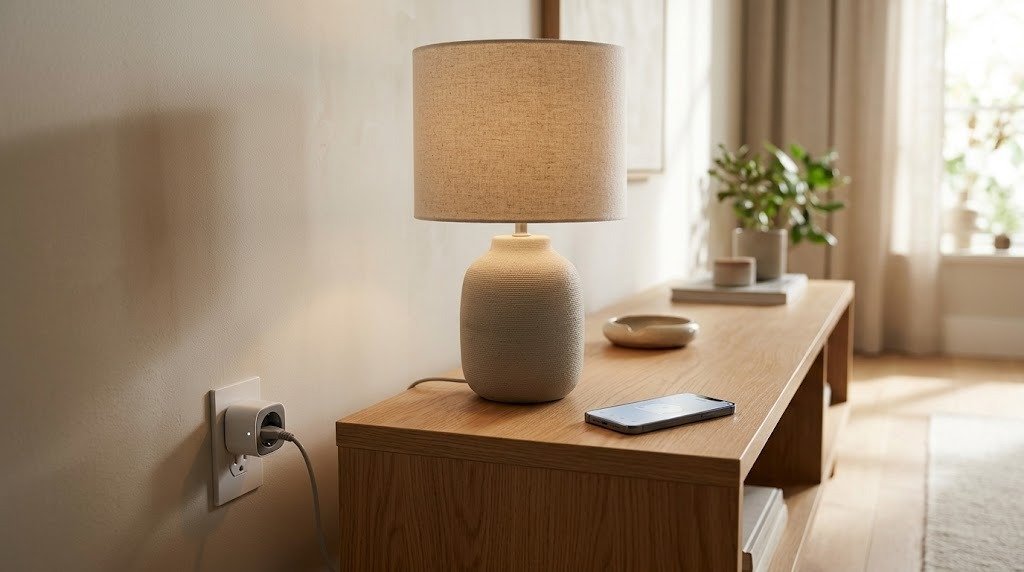
A lamp with a physical on/off switch is one of the best uses for a smart plug. Leave the lamp’s own switch on and control it through the plug.
Use a normal on/off smart plug only with a non-dimmable setup. If dimming is needed, use a product specifically designed and approved for lamp dimming and a compatible bulb.
Decorative lighting
Holiday lights and other suitable decorative lights can work well with schedules and timers.
For outdoor decorations, use equipment specifically rated for outdoor conditions and follow the manufacturer’s installation instructions.
Some fans
A basic fan with a mechanical switch may work if:
- Its electrical requirements fall within the plug’s rating.
- It restarts safely when power returns.
- Its manufacturer allows external switching.
- It does not need direct supervision.
Do not assume all fans or motor-driven appliances are suitable. Motor startup can create different electrical demands from normal running.
Selected air purifiers
An air purifier may work if it resumes its previous setting after power is restored and its electrical requirements are compatible.
Many models with electronic controls remain off after power interruption.
Simple office accessories
Suitable low-risk equipment may include:
- Desk lamps
- Selected monitor accessories
- Decorative lighting
- Some speakers
- Noncritical charging equipment approved for timed use
Computers and storage devices should be shut down properly through their operating systems, not switched off abruptly through a smart plug.
Selected entertainment accessories
Some users control low-risk accessories such as ambient lighting. Do not use a smart plug to repeatedly cut power to televisions, consoles, or streaming devices unless their manufacturers approve that method. These products may be installing updates or saving data while they appear inactive.
Devices That May Be Unsuitable or Unsafe
A smart plug should never be treated as a universal remote power switch.
Do not use an ordinary smart plug with equipment that exceeds its rating or requires a specialized control method.
High-power heating devices
Avoid using unsuitable smart plugs with:
- Space heaters
- Portable radiators
- Electric fireplaces
- Heated blankets
- High-power hair tools
- Other resistance-heating equipment
These devices can draw substantial current and may create a fire risk if the plug, outlet, wiring, or automation is inappropriate. If a manufacturer explicitly permits smart control, use only a correctly rated product designed for that purpose and follow all safety instructions.
Cooking appliances
Do not remotely activate appliances such as:
- Ovens
- Stovetops
- Hot plates
- Toasters
- Grills
- Deep fryers
- Pressure cookers
- Kettles
- Slow cookers not designed for remote operation
Cooking devices can generate heat, steam, or pressure and may require direct supervision. A timer or remote switch does not make an unsuitable appliance safe.
Medical equipment
Do not control essential medical equipment through a general-purpose smart plug. Network failures, accidental commands, updates, or plug malfunctions could interrupt operation.
Use only power and control equipment specified by the medical-device provider.
Refrigerators and freezers
A standard smart plug may not be suitable for refrigeration equipment because:
- The compressor has startup demands.
- Accidental shutoff can spoil food.
- Rapid cycling may damage equipment.
- Remote services or automations can fail.
- The plug may not be rated for motor loads.
Use only equipment specifically approved for the appliance and purpose. Energy monitoring should not create a risk of interruption.
Air conditioners, pumps, and large motors
These devices may have high startup currents or specialized electrical requirements. Do not use a basic smart plug unless both the appliance and plug manufacturers confirm compatibility.
Aquariums and pet-care equipment
Pumps, filters, heaters, and life-supporting equipment should not depend on an ordinary smart plug without careful failure planning. An accidental shutdown could harm animals.
If automation is needed, use purpose-designed controls, alarms, and backup measures recommended for the specific system.
Computers and network equipment
Do not regularly turn off a computer, network storage system, router, or modem by suddenly cutting power. Abrupt loss of power can interrupt updates, damage data, or create network problems.
A smart plug used to restart network equipment can also become unreachable when that network loses power. Use manufacturer-supported restart features whenever possible.
Wi-Fi Requirements
Many smart plugs connect through 2.4 GHz Wi-Fi because it offers good range and broad compatibility.
Before setup
Confirm that:
- The router’s 2.4 GHz band is enabled if required.
- Wi-Fi reaches the outlet where the plug will be used.
- The router uses a security mode supported by the plug.
- Your phone is connected to the required network.
- The manufacturer’s app has the necessary permissions.
- The Wi-Fi password is correct.
Test the outlet location
Take your phone to the planned outlet and check whether the connection remains stable. A plug near the edge of Wi-Fi coverage may respond slowly or appear offline.
If coverage is weak:
- Move the router into a more open position.
- Add a properly placed access point or mesh node.
- Avoid hiding the router in a cabinet.
- Reduce nearby interference.
- Place mesh nodes where they can still receive a good signal.
Internet access and local control
Some smart plugs depend on an online cloud service. Others can perform selected schedules or local controls without internet access.
Ask:
- Can the plug be controlled locally?
- Do saved schedules continue if the internet is down?
- Can the physical button still operate the outlet?
- Does the plug reconnect automatically after an outage?
- What state does it use when power returns?
These details are especially important for frequently used devices.
Privacy and Account Security
A smart plug does not contain a camera, but it can still collect information.
The app or service may record:
- Device name
- Account information
- Approximate location
- Network information
- On-and-off times
- Energy use
- Automation activity
- Voice-assistant commands
- Phone identifiers
- Diagnostic information
Patterns of device use may reveal when a room is occupied or when household routines occur.
Protect your smart plug account
Use:
- A strong, unique password
- Multifactor authentication when available
- Updated recovery information
- Individual household accounts instead of shared credentials
- Current app and device software
- A secured Wi-Fi network
Review which household members and connected services can control the plug. Remove former users and integrations you no longer use.
Check the privacy policy
Before buying, determine:
- What data is collected
- How long it is stored
- Whether it is shared
- Whether you can delete it
- Whether the plug requires a cloud account
- Whether local-only use is possible
- How long the manufacturer plans to support the product
A plug that loses security-update support should be removed or replaced.
How to Set Up a Smart Plug
The exact process varies, but most installations follow similar steps.
Step 1: Check compatibility
Before opening the package, confirm:
- Voltage and frequency
- Maximum current and power rating
- Supported load types
- Indoor or outdoor rating
- Wi-Fi or hub requirements
- Smart home platform support
- Outlet and plug type
- Whether energy monitoring is included
The product’s rating must be appropriate for both the outlet and the connected appliance.
Step 2: Inspect the equipment
Do not use the smart plug if it has:
- Cracks
- Bent contacts
- Loose parts
- Heat damage
- A damaged cable
- Moisture inside it
- Signs of modification
Step 3: Install the official app
Download the app from the official mobile app store. Confirm that the developer name matches the manufacturer.
Create an account if required, use a unique password, and enable multifactor authentication if available.
Step 4: Plug it directly into a suitable outlet
Unless the manufacturer explicitly allows another arrangement, connect the smart plug directly to a properly installed wall outlet.
Do not create chains of smart plugs, adapters, extension cords, or power strips.
Make sure the plug:
- Fits firmly
- Does not block required ventilation
- Does not become loose
- Is protected from moisture
- Does not prevent another plug from being inserted safely
Step 5: Enter pairing mode
Follow the manufacturer’s instructions. Pairing usually involves holding a button until an indicator begins flashing.
Step 6: Connect it to the network
Use the app to select the correct Wi-Fi network and enter its password. Keep the phone and smart plug near the router during initial setup if needed.
Step 7: Install updates
Check for firmware updates before creating routines or adding the plug to a voice assistant.
Keep the plug powered while an update is being installed.
Step 8: Give it a clear name
Name it according to the connected appliance and room—for example, “Office Desk Lamp.”
Step 9: Connect a suitable device
Check the appliance rating and confirm that it is safe to control by switching power. Test it while you are present.
Step 10: Create a simple schedule or routine
Begin with one low-risk action, such as turning off a lamp at bedtime. Test it several times before relying on it.
Practical Smart Plug Examples
Bedroom Examples
Suitable uses may include:
- Controlling a bedside lamp
- Turning off decorative lighting at bedtime
- Running an appropriate fan on a schedule
- Using a timer for a reading lamp
- Including lights in a bedtime routine
Example bedtime routine
At 10:30 p.m.:
- Turn off the reading lamp.
- Turn off decorative lights.
- Leave an essential night-light unchanged.
Avoid automatically turning off equipment that someone may rely on for accessibility, safety, or medical purposes.
Living Room Examples
Possible uses include:
- Switching a floor lamp on before sunset
- Turning off decorative lights overnight
- Controlling approved ambient lighting
- Operating a suitable fan
- Including lamps in a movie-night scene
Example movie-night routine
When “Movie Night” starts:
- Turn off the main plug-controlled lamp.
- Turn on low-level ambient lighting.
- Leave the television and streaming equipment under their normal controls.
Do not cut power to entertainment equipment while it is updating or saving information.
Kitchen Examples
Smart plugs require extra caution in kitchens because many appliances create heat, steam, or high electrical loads.
Lower-risk uses may include:
- Scheduling decorative cabinet lighting
- Monitoring the energy use of a compatible low-power appliance
- Controlling a suitable lamp
- Operating a manufacturer-approved device that can safely resume after power restoration
Avoid using ordinary smart plugs to remotely start cooking or heating appliances.
Example kitchen routine
At sunrise:
- Turn on approved decorative lighting.
- Keep all heating and cooking appliances under direct manual control.
Convenience should not replace supervision.
Office Examples
Suitable office uses may include:
- Controlling a desk lamp
- Switching off decorative lighting after work
- Operating an appropriate fan
- Monitoring selected accessory energy use
- Creating a “Workday Start” lighting routine
Example end-of-day routine
At a chosen time:
- Turn off the desk lamp.
- Turn off decorative lighting.
- Turn off approved noncritical accessories.
- Leave the computer, router, storage devices, and essential chargers under their normal controls.
Always shut down computers properly before removing power.
Common Smart Plug Problems
The Plug Will Not Connect to Wi-Fi
Try the following:
- Confirm that the plug supports your Wi-Fi band.
- Make sure 2.4 GHz is enabled if required.
- Check the Wi-Fi password.
- Move the plug closer to the router during setup.
- Restart the phone, plug, and router.
- Turn off a VPN temporarily if it interferes with local setup.
- Allow required local-network or Bluetooth permissions.
- Reset the plug using the manufacturer’s documented method.
- Install updates after it connects.
Do not disable wireless security to make a device connect.
The Plug Appears Offline
Possible causes include:
- Weak Wi-Fi
- Internet outage
- Router restart
- Plug firmware problem
- Manufacturer service outage
- Changed network name or password
- Loss of electrical power
- An overloaded or faulty outlet
Check whether other devices have internet access. Confirm that the plug’s physical button still works and that the outlet has power.
The Appliance Does Not Turn On
The appliance may require an electronic button press after power returns.
Test whether it safely resumes operation after being unplugged and reconnected. If it does not, a smart plug cannot fully control it.
Also confirm that:
- The appliance’s own switch is on.
- The smart plug is on.
- The plug has not entered an overload-protection state.
- The appliance and plug are compatible.
- A schedule has not turned the plug off.
Schedules Run at the Wrong Time
Check:
- Phone time zone
- Smart plug time zone
- Home location in the app
- Daylight-saving settings
- Sunrise and sunset location
- Days selected in the schedule
- Duplicate or conflicting routines
Delete unused schedules so they do not compete with one another.
Voice Commands Control the Wrong Plug
Rename devices so each has a distinct, natural name. Remove duplicate entries from the voice-assistant app and confirm that every plug is assigned to the correct room.
Energy Readings Look Incorrect
Verify that:
- The device actually supports energy monitoring.
- The electricity-rate setting is correct.
- The app’s unit of measurement is correct.
- The connected appliance is operating normally.
- The plug’s measurement range suits the device.
Treat readings as estimates unless the product is certified for a more precise purpose.
Safety Considerations
Electrical safety should take priority over convenience.
Check the rating
The smart plug’s supported voltage, current, power, and load type must match the outlet and appliance.
Do not rely only on an advertised maximum wattage. Motor loads, heating loads, and startup current may require different ratings.
When uncertain, consult the appliance manufacturer, smart plug manufacturer, or a qualified electrician.
Do not overload the plug
Never connect equipment that exceeds the plug’s rating. Stop using the plug immediately if it:
- Becomes unusually hot
- Smells like burning plastic
- Produces sparks
- Makes unusual buzzing or crackling noises
- Shows discoloration
- Feels loose in the outlet
- Repeatedly shuts down
Turn off power safely if necessary and seek qualified help. Do not open or repair the smart plug yourself.
Use indoor plugs indoors
An indoor plug should remain in a dry indoor location.
For outdoor use, choose a plug explicitly rated for:
- Outdoor conditions
- The expected temperature range
- Water and dust exposure
- The type of outlet and cover being used
Follow the required mounting orientation and weather-protection instructions.
Keep manual controls available
Apps, Wi-Fi, cloud services, and voice assistants can fail. The connected device should remain safely usable when the smart system is unavailable.
Do not make a critical safety function depend entirely on a smart plug.
Consider power-restoration behavior
Some plugs return to:
- On
- Off
- Their previous state
after a power outage.
Choose the safest setting for the connected appliance. For most devices that should not restart unattended, Off is the safer default.
Mistakes Beginners Should Avoid
Assuming every appliance is compatible
Electrical compatibility and safe restart behavior must be checked before use.
Ignoring the plug’s electrical rating
A smart plug designed for lamps may not be suitable for a motor, heater, or high-power appliance.
Connecting several adapters together
Do not stack smart plugs or create chains of plugs, power strips, and extension leads unless every manufacturer explicitly permits the arrangement.
Using an indoor plug outdoors
Humidity and condensation can damage equipment even in a partially covered area.
Treating an on/off plug as a dimmer
A normal smart plug cannot safely dim a lamp. Use a purpose-built smart dimmer and compatible lighting.
Using remote control for unsafe appliances
Do not remotely activate cooking, heating, medical, or other high-risk equipment with an unsuitable plug.
Depending entirely on cloud services
Check which controls and schedules continue to work during an internet outage.
Sharing one account password
Use separate household access where available. Protect the administrator account with a unique password and multifactor authentication.
Creating too many routines
Conflicting schedules can make a plug seem unreliable. Start with one routine and add others gradually.
Cutting power to computers and storage devices
Shut them down correctly before removing power. Abrupt power loss can damage files or interrupt updates.
Forgetting about old devices
Remove unused plugs from the app and smart home platform. Factory-reset them before selling, recycling, or giving them away.
Frequently Asked Questions
1. Can a smart plug turn on any appliance?
No. It can supply or cut electrical power, but the appliance must be electrically compatible and able to operate safely when power returns. Devices that require an electronic button press may not turn on through a smart plug.
2. Do smart plugs work without the internet?
It depends on the product. The physical button should normally continue working, and locally stored schedules may continue. Remote access and cloud-based voice commands generally require internet service. Check the manufacturer’s offline behavior before buying.
3. Do smart plugs use much electricity?
A smart plug consumes a small amount of power to remain connected and ready for commands. Exact consumption varies by model and features. Energy monitoring, status lights, and wireless communication may affect usage.
4. Can I use a smart plug with a power strip?
Only if the smart plug and power strip manufacturers permit it and the combined load remains within every applicable rating. Direct wall-outlet installation is generally simpler and reduces the risk of overloading or unstable connections. Never use a smart plug to make an overloaded power strip acceptable.
5. Is it safe to leave a smart plug on while away from home?
That depends on the connected appliance. A correctly installed smart plug controlling a suitable low-risk device, such as an approved lamp, can often be scheduled while you are away. Do not remotely operate heaters, cooking equipment, medical devices, or other appliances that require supervision unless the entire setup is specifically designed and approved for that purpose.
Conclusion
Smart plugs are most useful for simple, low-risk devices that can safely resume operation when power is restored. They can provide remote control, schedules, timers, voice commands, automations, and—in supported models—energy monitoring.
Start with a lamp or another clearly compatible device. Check the electrical rating, Wi-Fi requirements, privacy settings, and power-restoration behavior before creating automations.
Most importantly, remember that a smart plug controls electricity, not the appliance’s internal safety. Never use convenience features to bypass manufacturer instructions, electrical limits, or the need for direct supervision.